You typed a prompt into an AI video tool. You hit generate. And what came back looked… wrong. Maybe the character had seven fingers. Maybe the camera was doing something you never asked for. Maybe the whole vibe was just off, like the AI read your mind and then got confused halfway through.
You’re not alone. The gap between what you imagine and what the AI actually produces almost always comes down to one thing: the prompt.
AI video generation has made massive leaps. Tools like Kling AI, Veo, Sora, and Seedance can now produce clips that genuinely look cinematic. But the technology is only as good as the instructions you give it. A vague prompt gets you a vague video. A specific, well-structured prompt gets you something you’d actually want to post.
This guide is going to teach you exactly how to write prompts that work. Not theoretical advice. Not “be more descriptive” platitudes. We’re talking about the actual anatomy of a great prompt, tool-specific strategies for the platforms that matter right now, the mistakes that waste your credits, and the advanced techniques that separate beginners from people making genuinely impressive content.
Whether you’re creating content for social media, building a YouTube channel, prototyping a short film, or just experimenting with what’s possible, this is the guide you’ve been looking for.
Let’s get into it.
Why Your Prompts Matter More Than Your Tool
Here’s something most people get backwards: they spend weeks researching which AI video tool is “the best” and then spend about ten seconds writing their prompt.
The tool matters, sure. But the prompt is where 80% of your output quality comes from. A mediocre prompt in Kling will give you worse results than a great prompt in Veo. The best creators in this space aren’t winning because they found some secret tool. They’re winning because they’ve learned how to communicate with AI effectively.
Think of it this way. The AI has never seen the movie playing in your head. It doesn’t know what you mean by “cinematic.” It doesn’t automatically understand that when you say “a man walks through a forest,” you’re picturing a specific mood, time of day, camera angle, and atmosphere. You have to spell it out.
And that’s actually the fun part. Once you learn how to write prompts well, every tool becomes dramatically more powerful.
The Anatomy of a Perfect AI Video Prompt
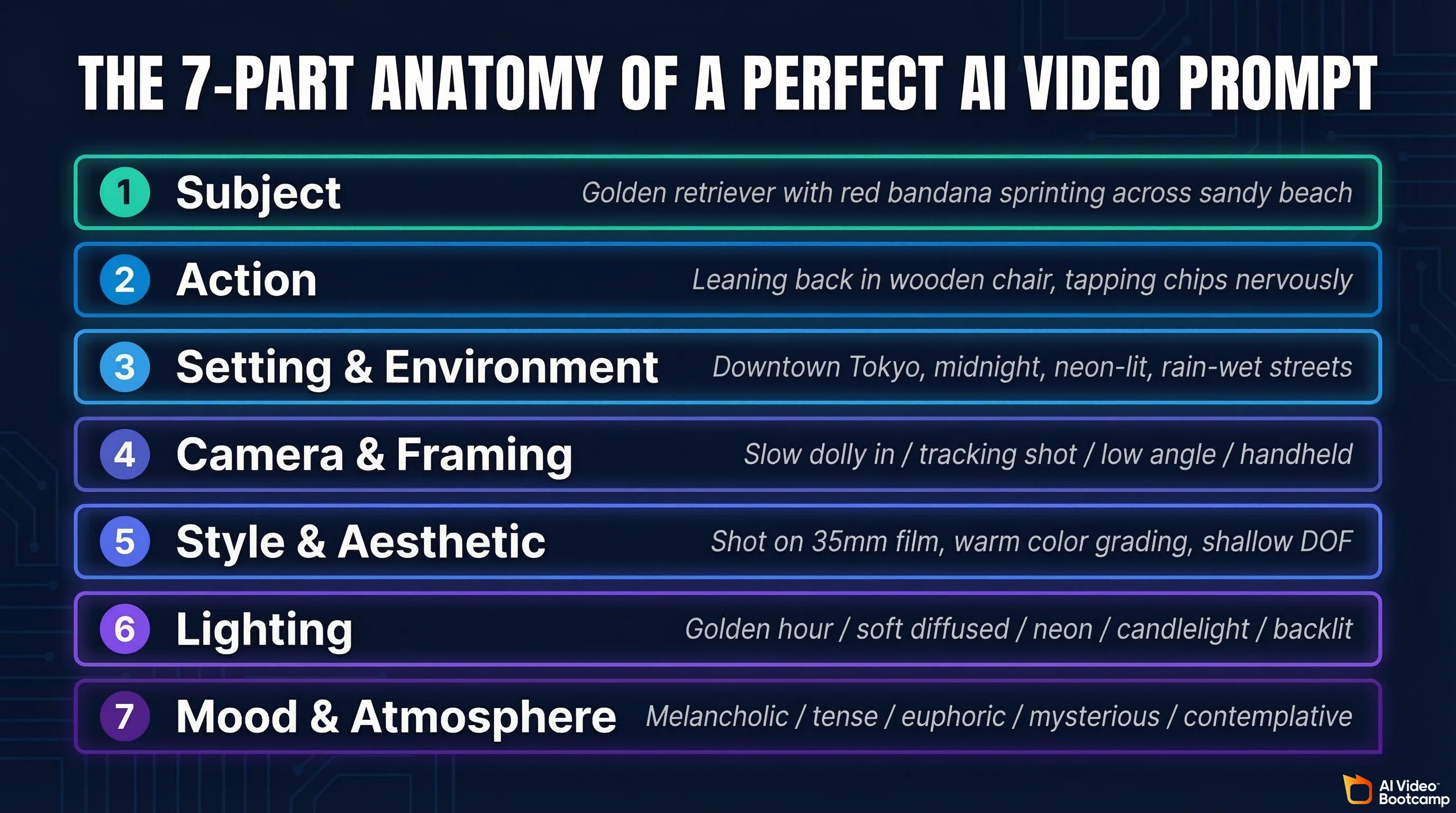
Every strong AI video prompt has the same core ingredients, regardless of which tool you’re using. Think of these as building blocks. You don’t need every single one in every prompt, but knowing what’s available gives you control.
1. Subject
This is the “who” or “what” your video is about. Be specific. “A woman” is okay. “A woman in her late twenties with curly auburn hair and a denim jacket” is much better.
The more visual detail you give the AI about your subject, the less it has to guess. And guessing is where things go wrong.
Weak: A dog running
Strong: A golden retriever with a red bandana sprinting across a wide sandy beach, ears flapping in the wind
2. Action
What is your subject doing? This is where a lot of beginners stop too early. “Walking” is an action, but it’s generic. “Walking slowly while looking over her shoulder” tells a story.
Weak: A man sitting at a table
Strong: A man in his forties leaning back in a wooden chair at a dimly lit poker table, tapping his chips nervously on the felt
3. Setting and Environment
Where is this happening? The setting creates context and mood. A conversation in a bright coffee shop feels completely different from the same conversation in a parking garage at night.
Include details about:
- Location type (city street, mountain trail, kitchen, space station)
- Time of day (golden hour, midnight, overcast afternoon)
- Weather or atmospheric conditions (foggy, rainy, clear blue sky)
- Notable environmental details (neon signs, falling leaves, steam rising)
4. Camera and Framing
This is one of the most overlooked elements, and it makes a huge difference. AI video tools understand cinematic language. You can (and should) tell them how to frame and move the camera.
Common camera directions that work well:
- Close-up or extreme close-up: great for emotion, detail shots
- Wide shot or establishing shot: sets the scene, shows scale
- Medium shot: standard framing for dialogue or action
- Low angle: makes subjects look powerful or imposing
- High angle or bird’s eye view: creates vulnerability or shows scope
- Tracking shot: camera follows the subject
- Slow dolly in: gradual zoom that builds tension
- Handheld: gives a raw, documentary-like feel
- Static camera: fixed position, lets the subject move through the frame
5. Style and Aesthetic
This is where you define the visual “feel” of your video. Are you going for photorealistic? Animated? Retro? Think about what kind of content you’re making and describe the style explicitly.
Examples of style descriptors:
- “Shot on 35mm film with warm color grading”
- “Pixar-style 3D animation with soft lighting”
- “Dark, moody cinematography with deep shadows”
- “Vintage VHS aesthetic with slight grain and soft edges”
- “Clean, modern commercial look with bright, even lighting”
6. Lighting
Lighting sets the emotional tone of your entire video. Don’t leave it to chance.
- Golden hour: warm, soft, flattering light
- Harsh overhead sun: creates strong shadows, dramatic feel
- Neon lighting: cyberpunk, nightlife vibes
- Soft diffused light: clean, commercial look
- Backlit / silhouette: mysterious, artistic
- Candlelight: intimate, warm
7. Mood and Atmosphere
Sometimes you need to tell the AI how the scene should feel, not just what it should look like. Words like “peaceful,” “tense,” “chaotic,” “melancholic,” or “euphoric” can nudge the AI’s interpretation in the right direction.
Putting It All Together
Here’s what a complete, well-structured prompt looks like:
A slow dolly shot pushing in on a woman in her thirties sitting alone at a rain-streaked window in a quiet cafe. She holds a ceramic mug with both hands, staring out at the blurred city lights. Soft amber interior lighting contrasts with the cool blue tones outside. Shot on 35mm film. Melancholic, contemplative mood. Shallow depth of field with raindrops in soft focus on the glass.
That’s a prompt the AI can actually work with. Every element is defined. There’s very little left to chance. The less that is left to chance, the higher probability you get what you want.
Tool-Specific Prompt Tips
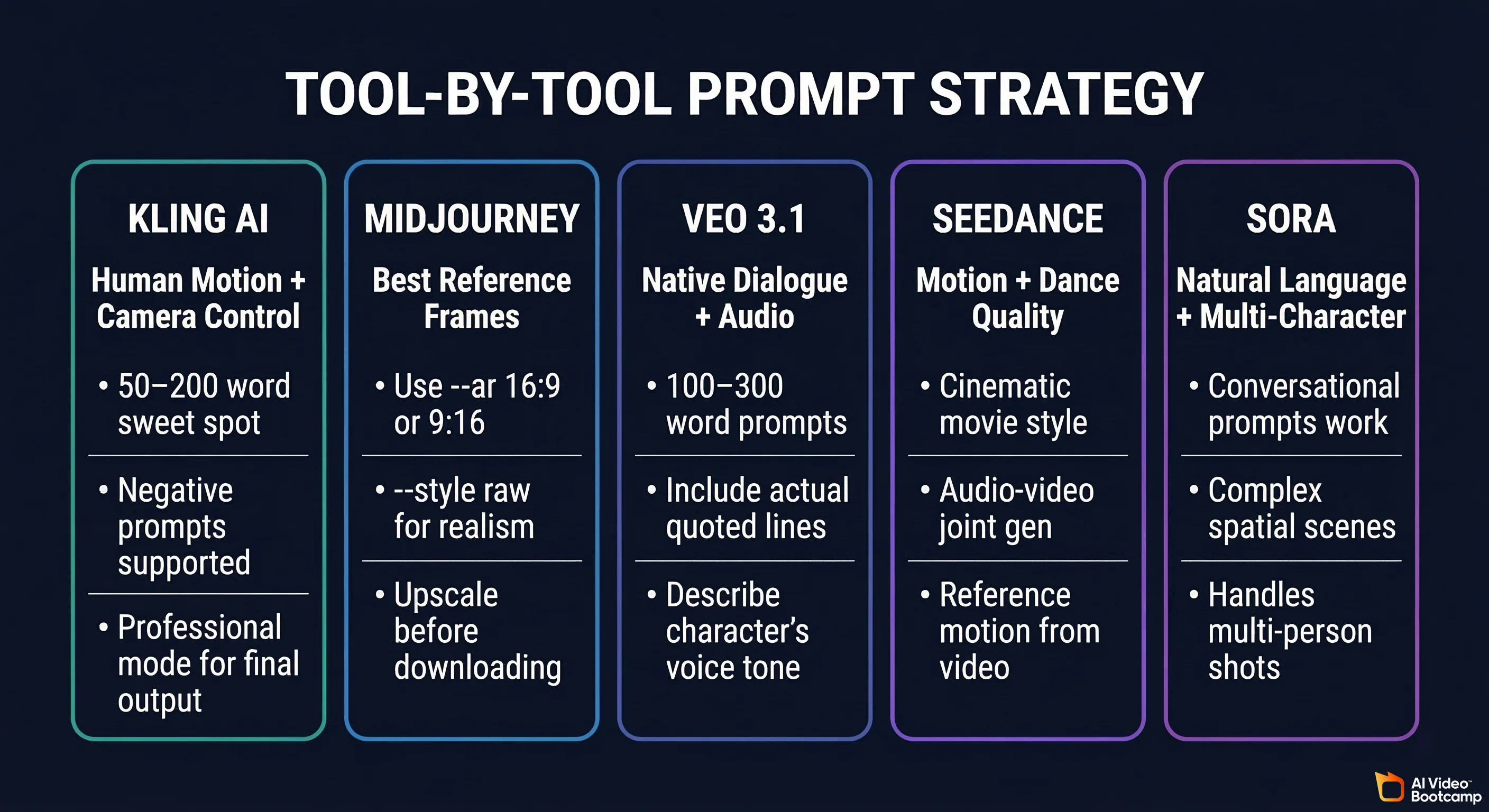
Every AI video tool interprets prompts a little differently. What works beautifully in Kling might need adjustment for Veo 3.1. Here’s what you need to know about each major platform.
Kling AI
Kling AI (by Kuaishou) has become one of the most popular AI video generators, and for good reason. It handles complex motion surprisingly well, produces sharp 1080p output, and is particularly strong with realistic human movement and expressions.
What Kling responds well to:
- Detailed character descriptions. Kling is great with faces and human figures. Give it specifics: age range, hair, clothing, expression.
- Camera motion keywords. Kling understands terms like “tracking shot,” “slow pan,” “zoom in,” and “orbit.” Use them.
- Negative prompts. Kling supports negative prompts (telling the AI what NOT to include). Use these to avoid common problems like “blurry, distorted hands, extra fingers, text, watermark.”
- Aspect ratio flexibility. You can specify 16:9, 9:16, or 1:1. Always choose the right one for your platform before generating.
Example Kling prompts:
For a product shot:
Close-up tracking shot of a frosted glass perfume bottle rotating slowly on a marble surface. Soft studio lighting with a gradient pink-to-purple background. Light refracts through the bottle creating subtle prismatic effects. Luxury commercial aesthetic, clean and minimal.
For a cinematic scene:
A wide establishing shot of a lone cowboy on horseback crossing a vast desert at golden hour. Dust trails behind the horse. Dramatic orange and red sky with long shadows stretching across the cracked earth. Shot in anamorphic widescreen with warm color grading. Western film aesthetic.
For social media content:
A cheerful woman in her twenties with braided hair unboxing a colorful sneaker at a clean white desk. Natural daylight from a window on the left. She smiles and holds the shoe up toward the camera. Bright, energetic mood. Medium shot, slight camera push in. Clean lifestyle content aesthetic.
Kling-specific tips:
- Keep prompts between 50 and 200 words for the best results. Too short and it guesses. Too long and it can lose focus.
- Use “Professional mode” for higher quality when you have the credits. Standard mode is fine for testing ideas.
- For image-to-video, upload a high-quality starting frame and use the prompt to describe the motion you want, not the appearance (the image handles that).
Midjourney (for Reference Frames)
Midjourney is one of the most important tools in an AI video creator’s toolkit. Why? Because the best AI videos often start with a stunning reference image, and Midjourney is still one of the kings of image generation.
How Midjourney fits into the video workflow:
- Generate a beautiful, detailed reference image in Midjourney
- Download it at high resolution
- Upload it to Kling, or another tool as an image-to-video starting frame
- Write a motion-focused prompt describing how the scene should move
This workflow consistently produces better results than text-to-video alone because you’re giving the AI a crystal-clear visual starting point.
Example Midjourney prompts for video reference frames:
For a character portrait:
A weathered fisherman in his sixties standing at the bow of a small wooden boat at dawn. Thick grey beard, deep wrinkles, kind eyes. Wearing a faded yellow rain slicker. Calm ocean behind him, soft pink and blue sky. Photorealistic, shot on medium format camera, shallow depth of field
For an environment:
A cozy Japanese ramen shop at night, steam rising from bowls, warm amber lighting, wooden countertop with condiments. View from outside through a foggy glass window. Rain-wet street reflections. Cinematic, moody, inviting atmosphere
For a product:
A single matte black wireless earbud floating against a pure white background. Dramatic side lighting creating a sharp shadow. Ultra-clean product photography, Apple-style minimalism
Midjourney tips for video workflows:
- Always use
--ar 16:9(or 9:16 for vertical video) so your image matches your intended video aspect ratio. 9:16 is best for social media, and 16:9 for more cinematic landscape scenes. - Avoid overly complex compositions with many characters. Simpler frames translate to video more cleanly.
- Use
--style rawif you want more photorealistic results with less Midjourney “flavor.” - After generating, upscale your chosen image before downloading for the best results when feeding into a video tool.
Google Veo (3 and 3.1)
Veo is Google DeepMind’s video generation model, and it’s rapidly become one of the most capable options available. Veo 3 introduced native dialogue generation (the AI creates characters who actually speak), and Veo 3.1 refined consistency and quality even further.
What makes Veo different:
Veo is one of the only major video models that generates actually good synchronized dialogue out of the box. You can write actual lines for characters to say, and Veo will generate voices, lip movements, and expressions to match. This is a game-changer for storytelling and creating AI influencers or AI UGC ads.
What Veo responds well to:
- Extremely detailed prompts. Veo thrives on long, specific prompts. Unlike some tools where shorter is better, Veo can handle (and benefits from) prompts that are 100 to 300 words.
- Dialogue direction. You can include actual quoted dialogue in your prompt and Veo will generate characters speaking those lines.
- Sensory language. Google’s own prompt guide recommends “evocative, sensory language.” Describe textures, sounds, temperatures, and feelings.
- Play-by-play action sequences. For complex scenes, Veo works best when you describe the action beat by beat.
Example Veo prompts:
For a dialogue scene:
A medium shot frames two old friends sitting across from each other at a small round table in a bustling Italian piazza. One is a tall man with silver hair in a linen shirt, the other a shorter woman with round glasses and a bright scarf. The man leans forward and says, ‘You know, I’ve been coming to this exact table for thirty years, and the espresso has never once been bad.’ The woman laughs and replies, ‘That’s because you’ve never once ordered anything else.’ Warm afternoon sunlight. Background chatter and clinking dishes. Relaxed, joyful mood.
For a world-building scene:
A slow, sweeping aerial shot over a snow-covered plain of iridescent moon-dust under twilight skies. Thirty-foot crystalline flowers bloom across the landscape, refracting light into slow-moving rainbows that drift through the air. A small fur-cloaked figure walks between these colossal blossoms, leaving the only footprints in untouched dust. The camera gradually descends closer to the figure. Ethereal, alien, breathtaking. Science fiction concept art brought to life.
For an action sequence:
A first-person perspective shot racing through a neon-lit Tokyo alleyway at night on a motorcycle. Rain is pouring down. Neon signs in Japanese reflect off the wet pavement, streaking into blurs of pink, blue, and orange. The motorcycle weaves between pedestrians with umbrellas. Puddles splash. The camera shakes slightly with each turn. The engine roars. Intense, adrenaline-fueled. Cyberpunk aesthetic with hyperrealistic lighting.
Veo-specific tips:
- Lead with the camera framing, then subject, then action, then environment. Veo parses information roughly in this order.
- For dialogue, keep it to 2-3 lines per generation. Longer conversations work better as multiple clips edited together.
- Describe the character’s voice if you can: “a deep, gravelly voice” or “a bright, energetic tone.” Veo uses this for audio generation.
- Use Veo 3.1’s “Ingredients to Video” feature: generate reference images first (using Gemini or Midjourney) and then reference them in your prompt for better character consistency across shots.
Seedance
Seedance (by ByteDance) is a newer player but it’s making waves, especially with version 2.0. It supports multimodal inputs, meaning you can feed it text, images, audio, and even reference videos as inspiration.
What Seedance does well:
- Motion quality is excellent, especially for dance and athletic movements, or cinematic movie style videos
- Supports audio-video joint generation
- Can reference a motion style from an existing video and apply it to new content
Example Seedance prompt:
A professional hip-hop dancer in a black hoodie performing a fluid, rhythmic routine in an empty parking garage at night. Fluorescent overhead lights flicker. Concrete pillars frame the shot. Camera slowly circles the dancer. Each move flows into the next with weight and precision. Gritty, urban, energetic. Shot with a wide-angle lens from a low perspective.
Sora
Sora (OpenAI’s video generation model) has steadily improved and is available through ChatGPT Pro subscriptions. It understands natural language prompts very well.
What Sora does well:
- Understands complex spatial relationships
- Handles multi-character scenes better than most tools
- Interprets natural, conversational prompts effectively
Example Sora prompt:
Two children in bright rain boots jump into puddles on a quiet suburban street after a rainstorm. Late afternoon light makes everything glow. Their reflections shimmer in the water. A parent watches from a front porch in the background, smiling. The camera is low to the ground, capturing the splash in slow motion. Joyful, nostalgic, golden-hour warmth.
The 10 Most Common Prompt Mistakes (and How to Fix Them)
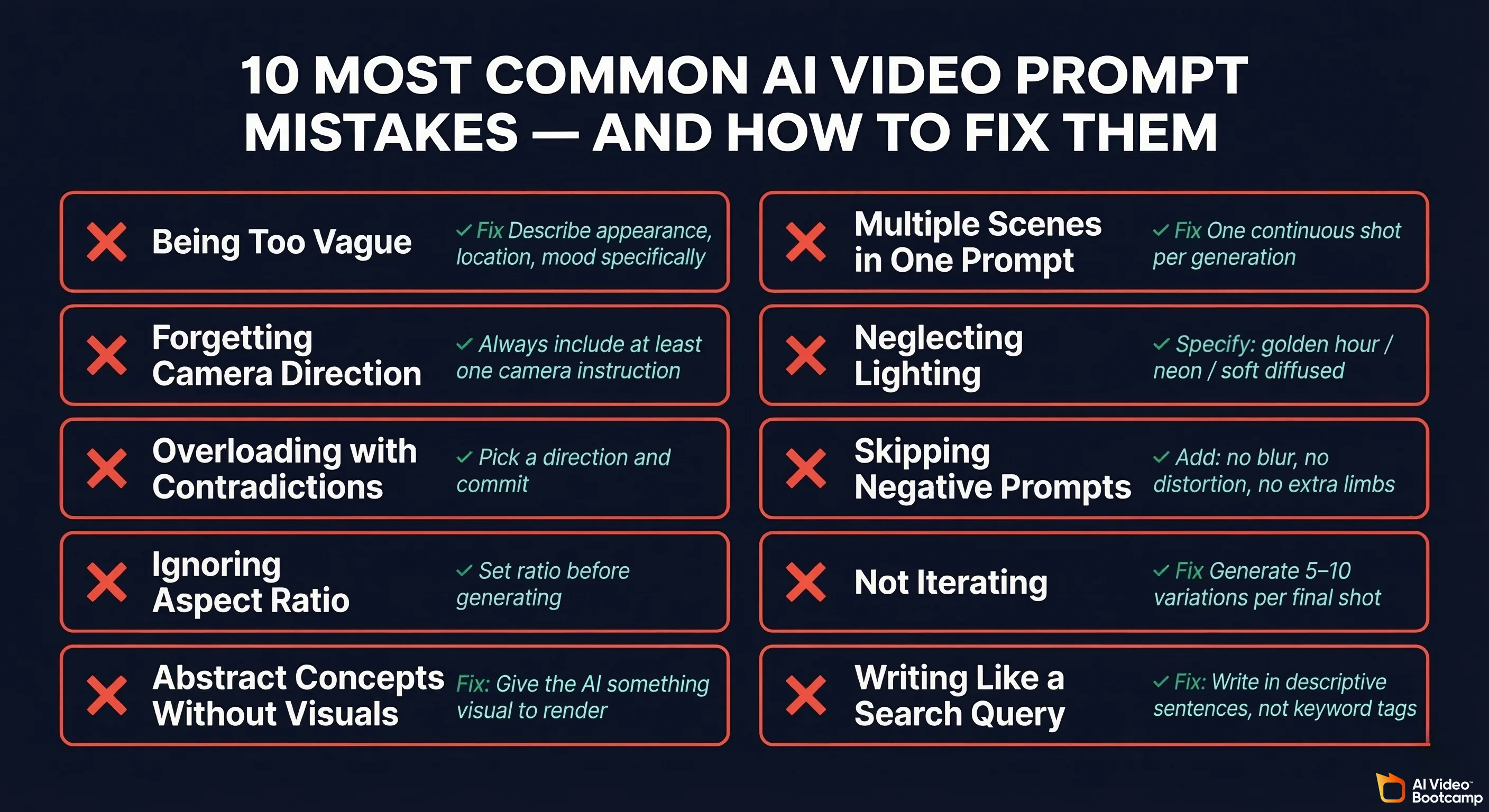
1. Being Too Vague
Bad: A cool video of a city
Better: An aerial tracking shot gliding over downtown Tokyo at night, neon lights reflecting off rain-wet streets, slow camera movement, cyberpunk atmosphere
Vague prompts force the AI to make dozens of decisions on its own. Most of those decisions won’t match what you had in mind.
2. Forgetting Camera Direction
If you don’t specify a camera angle or movement, the AI picks one randomly. Sometimes it works. Usually it doesn’t. Always include at least a basic camera instruction.
3. Overloading with Contradictions
“A bright, sunny day with dark, moody shadows in a warm but cool-toned environment.” The AI doesn’t know what to do with contradictions. Pick a direction and commit to it.
4. Ignoring Aspect Ratio
Generating a 16:9 video when you need vertical content for TikTok wastes credits and time. Set the correct aspect ratio before you generate.
5. Using Abstract Concepts Without Visual Anchors
“A video about freedom” means nothing to an AI. “A woman releasing a white dove from her open hands on a clifftop overlooking the ocean at sunrise” is freedom the AI can actually render.
6. Cramming Multiple Scenes into One Prompt
Each generation is one continuous shot. Don’t ask for “a man walks into a building, sits down, has a conversation, and then leaves.” That’s four shots. Generate them separately and edit them together in CapCut or Descript.
7. Neglecting Lighting
Lighting is half of what makes a video look good or bad. “Bright lighting” and “soft golden hour sidelight” produce dramatically different results. Be specific. Especially if you are creating AI Influencers where realism is a must.
8. Skipping Negative Prompts (When Available)
If your tool supports negative prompts (Kling does), use them. Adding “no blurry, no distortion, no extra limbs, no text overlay” can noticeably improve output quality.
9. Not Iterating
Your first prompt is a draft. Treat it like one. Generate, evaluate, adjust, regenerate. The best AI video creators iterate 5 to 10 times per final shot.
10. Writing Like a Search Engine Query
“Epic cinematic drone shot mountains snow 4K” is not a prompt. It’s a keyword list. Write in natural, descriptive sentences. The AI understands language, not tags.
Advanced Prompt Techniques
Once you’ve got the basics down, these techniques will take your results to the next level.
The “Director’s Treatment” Method
Write your prompt as if you’re a film director giving instructions to your cinematographer. This naturally produces the right level of detail and the right kind of language.
Instead of: A car chase scene
Try: We open on a tight shot of a driver’s hands gripping a leather steering wheel, knuckles white. Cut to a wide shot as a black sedan tears through narrow European cobblestone streets. The camera follows from a parallel car. Dust and debris kick up. The sedan drifts around a tight corner, barely missing a fruit stand. Late afternoon shadows stretch long across the street. Tense, fast-paced. Shot with a long lens to compress the depth.
Temporal Progression
Describe what happens over the course of the clip, not just a single frozen moment. AI video is, well, video. Give it movement through time.
The scene begins with an empty park bench at dawn. Fog drifts low across the grass. Gradually, warm sunlight breaks through the trees, burning off the mist. A small bird lands on the edge of the bench, looks around, and then flies off. The camera holds still throughout. Peaceful, contemplative.
Style Stacking
Combine multiple style references to create something unique.
Wes Anderson composition and symmetry meets Blade Runner neon color palette. A perfectly centered shot of a retro hotel lobby with chrome and pink neon accents. A bellhop in a pastel uniform stands at attention.
The Reference Chain Workflow
This is the workflow that serious creators use:
- Write a detailed scene description in plain language
- Generate a reference image in Midjourney or Nanobanana Pro using that description
- Upload the image to Kling AI or Runway
- Write a motion-only prompt describing camera movement and subject action
- Generate the video
- Extend or enhance if the tool supports it
- Edit the final clips together in CapCut or similar
This chain produces consistently better results than text-to-video alone because each step reduces ambiguity for the AI.
Prompt Layering for Complex Scenes
Break complex ideas into layers and address each one:
- Layer 1 (Subject): Who or what is the focus?
- Layer 2 (Action): What are they doing?
- Layer 3 (Environment): Where is this?
- Layer 4 (Camera): How are we seeing this?
- Layer 5 (Light and Color): What’s the lighting and palette?
- Layer 6 (Mood): How should this feel?
- Layer 7 (Style): What’s the visual genre or reference?
Write a sentence or two for each layer, then combine them into your final prompt. This systematic approach makes sure you never forget a critical element.
Using AI to Enhance Your Prompts
One of the smartest moves is to use AI to help you write better prompts. You can feed a basic idea to a language model and ask it to expand it with cinematic detail, lighting descriptions, and camera directions. This is especially helpful when you’re stuck or when you know what you want but can’t quite articulate it.
Building a Complete Video: From Prompts to Final Edit
Knowing how to write great prompts is step one. But a finished video is almost never a single generated clip. Here’s how the full process works.
Step 1: Script or Storyboard
Before you touch any AI tool, plan your video. Even a rough list of shots helps enormously. What’s the opening? What’s the emotional arc? What’s the closing shot?
Step 2: Generate Reference Images
Use Midjourney (or a similar image generator) to create visual references for your key frames. This locks in the look before you spend video credits.
Step 3: Generate Video Clips
Use your reference images and motion prompts to generate clips in Kling AI, Veo, or your tool of choice. Plan to generate 3 to 5 variations of each shot and pick the best.
Step 4: Add Voiceover or Dialogue
Tools like ElevenLabs (starting at $5/month) offer incredibly natural AI voiceover. HeyGen and Synthesia are great for AI avatar-based narration if you want a presenter on screen. Descript is useful for editing spoken content and can even generate voices.
Step 5: Edit Everything Together
Pull your clips, audio, and any text overlays into an editor. CapCut is free and powerful for short-form content. Canva has surprisingly capable video editing for social content. Descript is excellent if your video is voice-heavy. For more complex projects, any traditional editor works.
Step 6: Add Music and Sound Design
Sound makes or breaks a video. ElevenLabs now offers sound effects alongside voice generation. Many editors like CapCut include royalty-free music libraries.
Frequently Asked Questions
How long should my AI video prompt be?
It depends on the tool. For Kling AI and Runway, 50 to 150 words hits the sweet spot. For Veo, you can go longer, up to 200 to 300 words, and it actually benefits from the extra detail. Too short (under 20 words) almost always produces generic results.
Do I need to use technical film terminology?
Not necessarily, but it helps. Terms like “close-up,” “wide shot,” “dolly in,” and “tracking shot” are well understood by all major AI video tools. You don’t need to be a filmmaker, but learning 10 to 15 basic camera terms will noticeably improve your results.
Which AI video tool is best for beginners?
Kling is great for quick experiments due to its low cost and simple interface. Kling AI offers an excellent balance of quality and affordability. Runway has the most polished interface and good documentation. Start with whichever feels most comfortable and expand from there.
Can I use AI-generated videos commercially?
Yes, on paid plans. Runway, Kling AI, Midjourney, Nanobanana Pro and most other tools grant commercial usage rights on their paid tiers. Always check the specific terms of service for your plan level, as free tiers often have restrictions.
How do I maintain character consistency across multiple shots?
This is one of the biggest challenges in AI video right now. The best approach is the reference image method: generate a detailed character image in Nanobanana Pro, then use it as the starting point for every shot featuring that character. Veo 3.1’s “Ingredients to Video” feature is specifically designed for this.
What about text and titles in AI video?
AI video tools are still unreliable with text rendering. Don’t try to include titles or text in your prompts. Instead, generate your video clean and add text overlays in your editor (CapCut, Canva, Descript, etc.).
How is AI video different from AI images?
The biggest difference is temporal coherence. An image just needs to look good in a single frame. A video needs to maintain consistency across dozens of frames while things move. This is why motion descriptions and camera directions matter so much in video prompts. You’re not just describing a scene; you’re describing how a scene unfolds over time.
What resolution should I generate at?
Generate at the highest resolution your credits allow for final output. Most tools now support 1080p, and some offer higher resolutions on premium plans.
How do I make AI video look less “AI-generated”?
Several things help: use specific, cinematic lighting descriptions (avoid flat, even lighting). Add subtle camera movement instead of a static shot. Include environmental details like dust particles, steam, or slight lens imperfections. Reference real film stocks or camera types (“shot on Arri Alexa” or “Kodak Portra color science”). And edit your final video with color grading and sound design, which goes a long way toward a polished, professional feel.
Your Prompt Toolkit: A Quick Reference
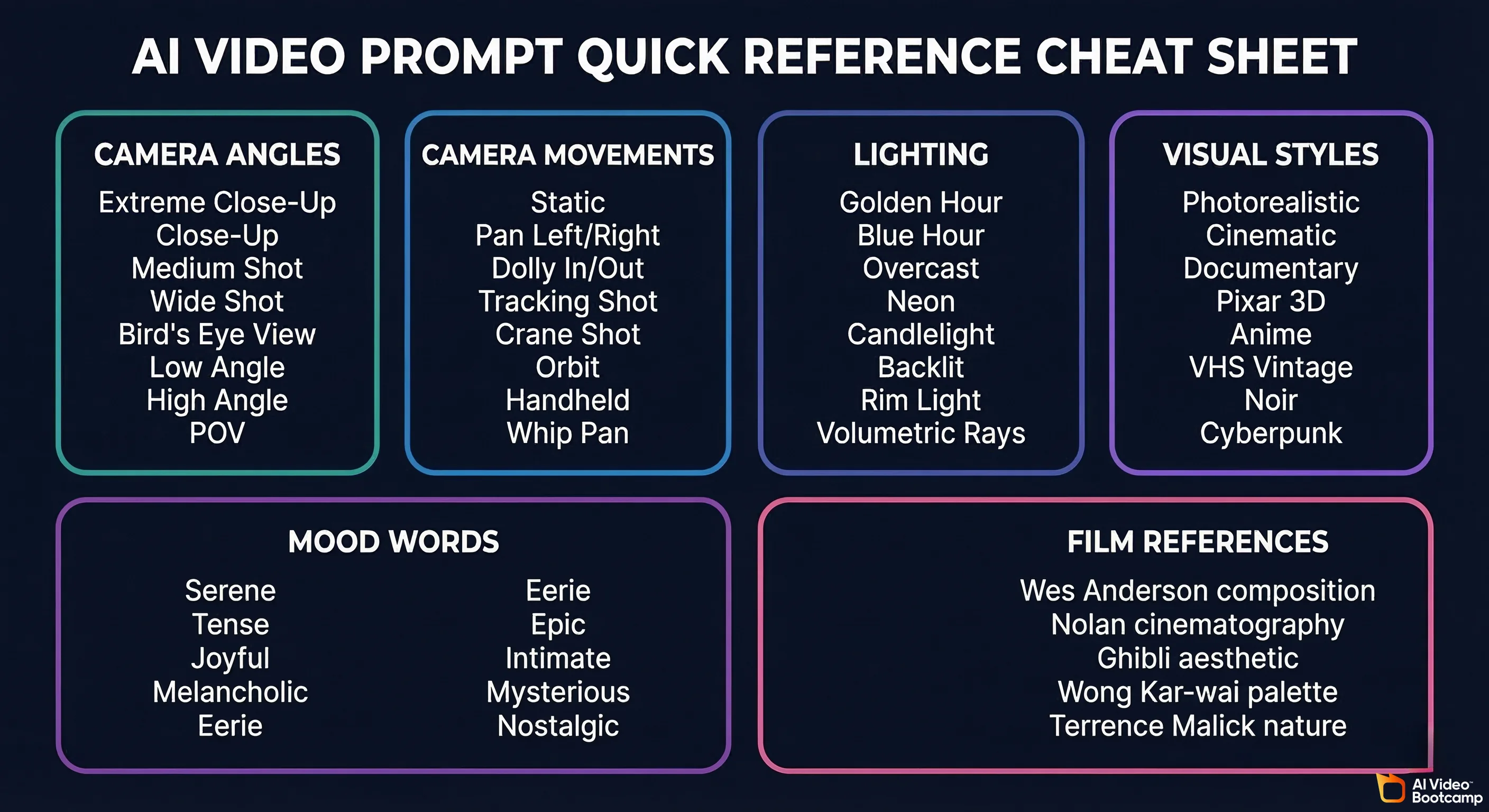
Here’s a cheat sheet you can reference every time you write a prompt:
Camera angles: extreme close-up, close-up, medium shot, wide shot, extreme wide shot, bird’s eye view, low angle, high angle, over the shoulder, POV (first person)
Camera movements: static, pan left/right, tilt up/down, dolly in/out, tracking shot, crane shot, orbit, handheld, steadicam, whip pan, slow zoom
Lighting: golden hour, blue hour, overcast diffused, harsh midday sun, neon, candlelight, studio softbox, backlit, rim light, volumetric light rays, moonlight
Visual styles: photorealistic, cinematic, documentary, Pixar/3D animation, anime, watercolor, oil painting, vintage film, VHS, noir, cyberpunk, pastel, minimalist
Mood words: serene, tense, joyful, melancholic, eerie, whimsical, epic, intimate, chaotic, contemplative, euphoric, mysterious, nostalgic, ominous
Film references (use sparingly): “in the style of Wes Anderson,” “Christopher Nolan cinematography,” “Ghibli animation aesthetic,” “Terrence Malick nature footage,” “Wong Kar-wai color palette”
Start Writing Better Prompts Today
The difference between a frustrating AI video experience and a genuinely exciting one is almost always the prompt. Now you have the framework, the examples, and the tool-specific knowledge to write prompts that actually produce results worth sharing.
Start simple. Pick one tool, write a detailed prompt using the anatomy we covered, and generate. Look at what worked and what didn’t. Adjust. Regenerate. Each iteration teaches you something new about how that specific AI interprets your words.
If you want to speed up this process, tools like Prompt Enhancer Pro can help you automatically transform basic ideas into detailed, optimized prompts tailored for different AI video and image tools. Or for expert guidance, why not join a community like AI Video Bootcamp. It’s a handy shortcut when you know what you want but need a community and guidance to get you there. With over 14,000 members learning and giving daily feedback, it’s the number 1 AI Video/image training ground in the world.
The tools are only going to keep getting better. But the creators who learn to prompt well now will have a massive advantage, because great results have always started with clear, specific, creative communication.
Now go make something incredible.