If you have been paying attention to the AI video space over the past year, you have probably heard of Kling AI. It went from a relatively unknown tool to one of the most talked about AI video generators in the world, hitting $240 million in annual revenue by the end of 2025. Over 60 million creators have used it to generate more than 600 million videos.
But here is the thing. Most guides about Kling AI are either outdated or so technical that they lose you in the first paragraph. This guide is different. Whether you are brand new to AI video or you have been experimenting for a few months, this post will walk you through everything you actually need to know. Pricing with real dollar amounts, features that matter, prompts that work, and honest tips that will save you time and credits.
Let’s get into it.
What Is Kling AI?
Kling AI is an AI video generation platform built by Kuaishou, the Chinese tech company behind one of Asia’s biggest short video apps (think of it as China’s version of TikTok). It launched globally in mid-2024 and quickly became one of the top AI video tools alongside Runway, Pika, and Google’s Veo.
At its core, Kling AI does two main things:
- Text-to-video: You type a description and Kling generates a video clip from scratch.
- Image-to-video: You upload a photo and Kling brings it to life with motion.
That sounds simple, but the technology behind it is remarkable. You can describe a scene like “a golden retriever running through autumn leaves in a sunlit park, slow motion, cinematic lighting” and Kling will generate a realistic video clip in about a minute. No camera, no actors, no editing software required.
What sets Kling apart from competitors is a few things. First, video length. Kling AI can generate videos up to 15 seconds long now with Kling 3.0 multishot. Second, it offers built-in audio generation, meaning your videos can come with voiceovers, sound effects, and music right out of the box. And third, the price-to-quality ratio is actually competitive.
The platform runs entirely in your web browser at klingai.com. No downloads, no installations. You sign up, pick a plan (or start free), and start creating.
Kling AI Model Versions: 2.0 Through 3.0
One thing that confuses newcomers is the different model versions available inside Kling. Here is a quick breakdown of what each version does and when to use it.
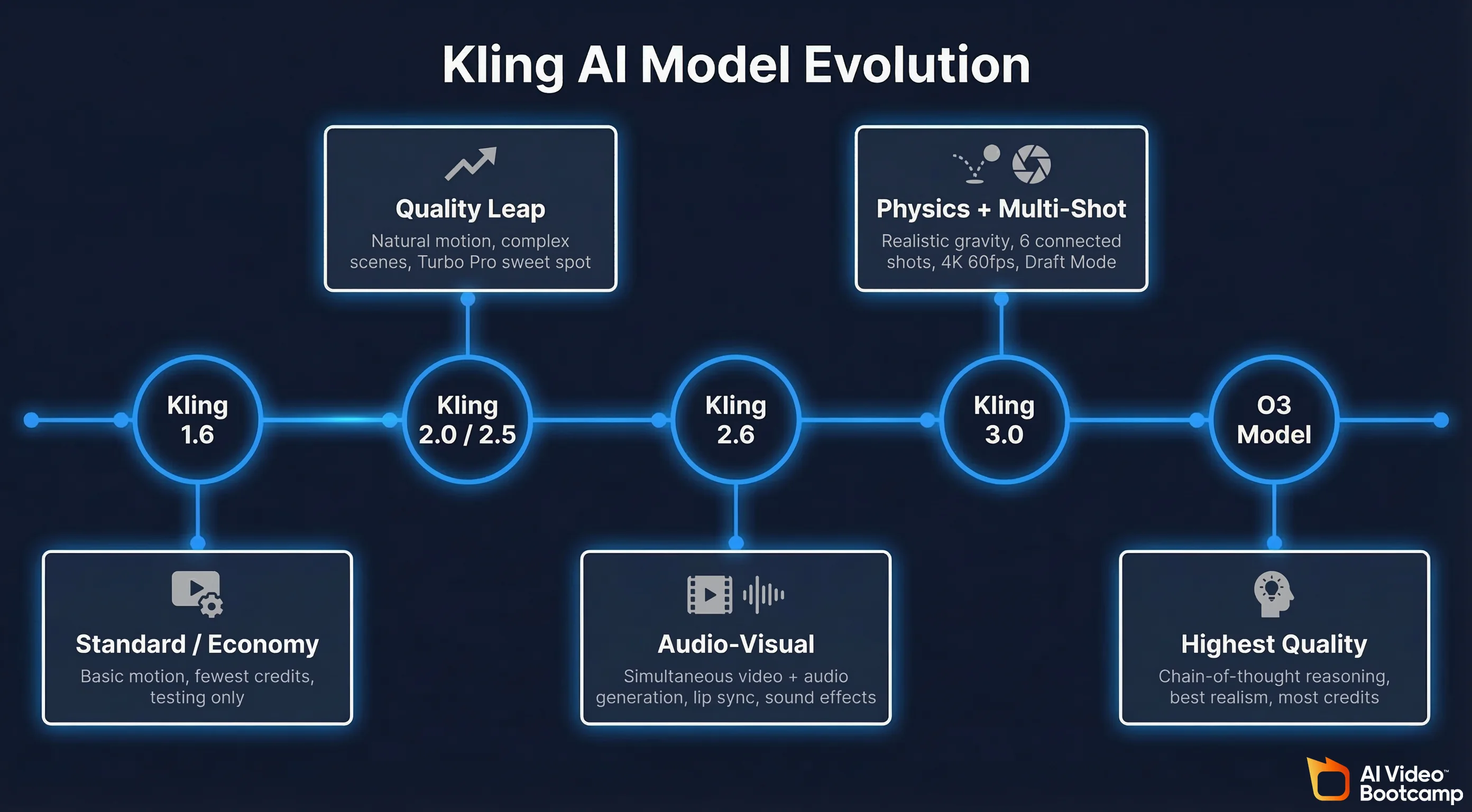
Kling 1.6 (Standard)
This is the original model and the most basic option. It still works fine for simple scenes with limited motion, but the quality is noticeably lower than newer versions. Think of it as the economy option. If you are on the free tier and want to stretch your credits, Kling 1.6 in Standard Mode uses the fewest credits per generation.
Best for: Quick tests, simple product shots, basic animations where quality is not critical.
Kling 2.0 and 2.5 Turbo Pro
Kling 2.0 brought major improvements in motion quality and prompt understanding. Characters move more naturally, camera movements are smoother, and the overall visual fidelity took a noticeable leap. Kling 2.5 Turbo Pro refined this further with faster generation times and better handling of complex multi-element scenes.
The Turbo Pro variant is a sweet spot for many creators. It generates quickly, costs moderate credits, and handles most prompts well. The key limitation is that it works best with 3 to 4 elements in your prompt. Try to cram too much in and you will get inconsistent results.
Best for: Social media content, product demos, YouTube shorts, most everyday video generation needs.
Kling 2.6 (Audio-Visual Generation)
This was the game-changer that dropped in December 2025. Kling 2.6 introduced simultaneous audio-visual generation, meaning the AI generates both video and audio in a single pass. Before this, you would create a silent video and then separately add voiceovers or sound effects using tools like ElevenLabs or CapCut.
With Kling 2.6, your generated video can include:
- Voiceovers and narration in multiple languages
- Lip-synced dialogue that matches character mouth movements
- Sound effects matched to the action (footsteps, door creaking, water splashing)
- Ambient audio (city noise, forest sounds, crowd murmur)
- Background music that fits the mood of the scene
The catch? Audio generation uses roughly double the credits of standard video generation. A 10-second video with audio costs around 42 credits per second versus 7 credits per second for a basic Standard Mode clip. So plan your budget accordingly.
Best for: Social media ads, product videos with narration, short films, any content where you want a complete audio-visual package without post-production.
Kling 3.0 (Latest)
Kling 3.0 started rolling out in early 2026 and represents the biggest architectural leap yet. It is built on what Kuaishou calls the “Omni One” architecture, which is a unified engine that handles text-to-video, image-to-video, and video editing all in one system.
The headline features of Kling 3.0 include:
- Physics-accurate motion: Objects and characters move with realistic gravity, balance, and inertia. No more floating objects or limbs that bend the wrong way.
- Chain-of-Thought reasoning: The model “thinks through” complex scenes before generating them, resulting in much better handling of multi-step actions.
- Native audio sync: Even better lip sync and sound effect generation than 2.6.
- 7-in-1 Multi-Modal Editor: Add objects, swap backgrounds, restyle aesthetics, and extend clips all within the same interface.
- Draft Mode: Generate quick previews at 5 to 20x faster speeds to test your prompts before committing full credits to a high-quality render.
- Multi-Shot generation: Create up to 6 connected shots in a single generation, with automatic camera transitions between them. This is huge for storytelling.
- 4K 60fps output: Available on the Multi-Shot feature for truly cinematic quality.
- 16-bit HDR and EXR export: For creators who need to bring clips into professional editing software.
Kling 3.0 also introduced the O3 reasoning model, which is the highest quality tier. It produces the most realistic output but uses significantly more credits.
Best for: Professional content creation, short films, commercial production, anyone who needs the absolute best quality Kling can offer.
Which Model Should You Pick?
If you are just starting out, use Kling 2.5 Turbo Pro as your default. It offers the best balance of quality, speed, and credit cost. Switch to Kling 2.6 when you need audio. Move up to Kling 3.0 when you need physics-accurate motion or multi-shot sequences. Use Draft Mode to preview your ideas before spending credits on full renders.
Kling AI Pricing Breakdown (Real Numbers)
Kling AI uses a credit-based system. Every video you generate costs a certain number of credits depending on the model, video length, and quality mode. Here is what each plan costs and what you actually get.
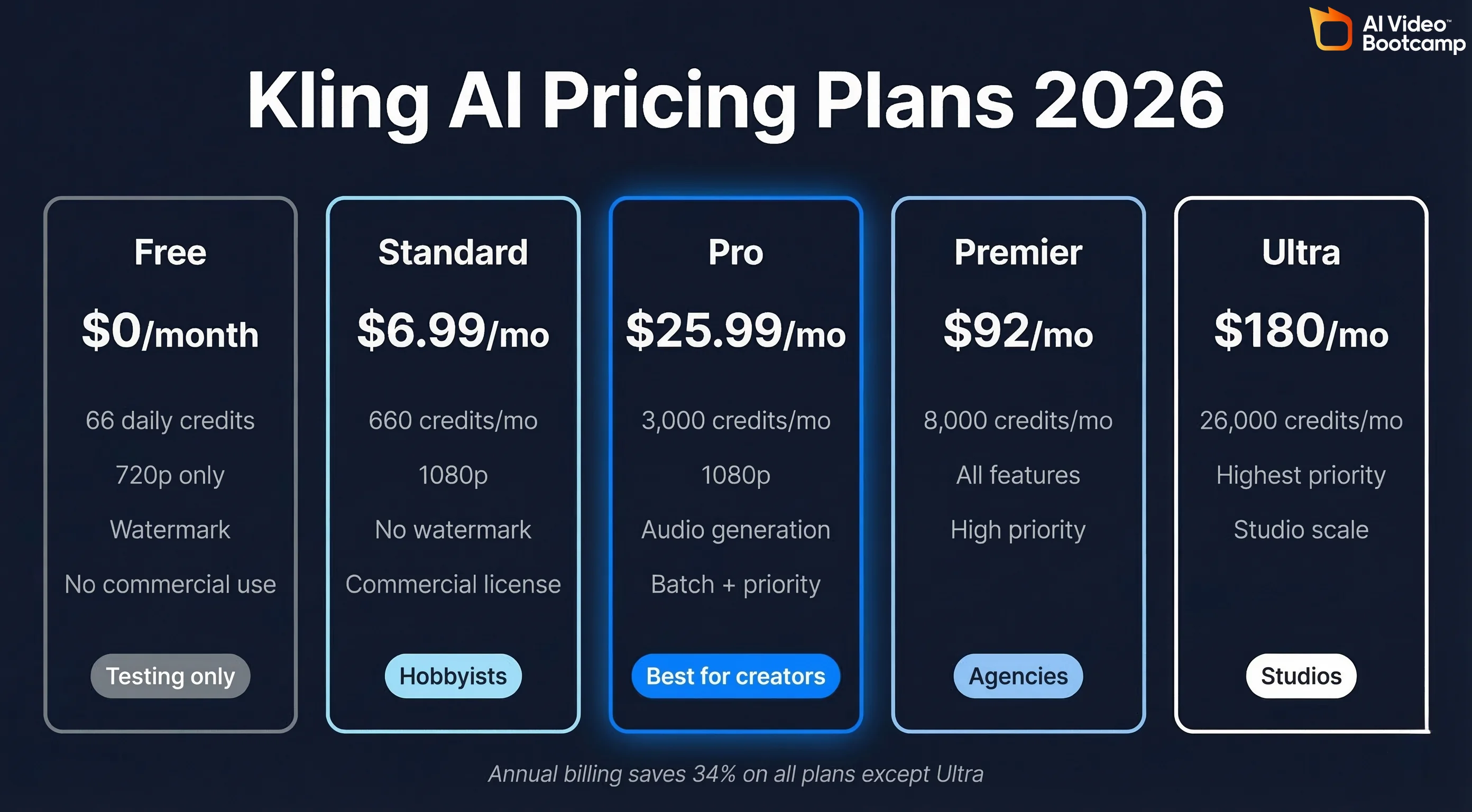
Free Tier ($0/month)
- Credits: 66 per day (about 1,980 per month if you use it every day)
- Resolution: 720p maximum
- Watermark: Yes, always present
- Video length: 5 or 10 seconds per generation
- Professional Mode: 3 trial uses only
- Commercial license: No
What you can actually do: In Standard Mode, you get about 3 ten-second videos per day or 6 five-second videos. In Professional Mode, you are limited to 1 to 2 videos per day. Credits reset every 24 hours and do not roll over, so use them or lose them.
Verdict: Fine for testing and getting a feel for the platform. Not usable for any real project due to the watermark, low resolution, and limited credits.
Standard Plan ($6.99/month or $79.20/year)
- Credits: 660 per month
- Resolution: 1080p
- Watermark: Removed
- Video length: Up to 2 minutes with extensions
- Professional Mode: Unlimited
- Commercial license: Yes
- Processing priority: Fast-track
What you can actually do: About 33 ten-second Standard Mode videos per month, or roughly 9 ten-second Professional Mode videos. Credits roll over and stay valid for 2 years.
Verdict: Good entry point for hobbyists and occasional creators. If you are making a few videos per week for social media, this might be enough. But 660 credits goes fast, especially if you are experimenting with prompts and not every generation turns out how you want.
Pro Plan ($25.99/month or $293.04/year)
- Credits: 3,000 per month
- Resolution: 1080p
- Watermark: Removed
- Video length: Up to 3 minutes with extensions
- Professional Mode: Unlimited
- Kling 2.6 audio: Full access
- Kling O1/O3: Full access
- Batch generation: Yes
- Processing priority: Priority
What you can actually do: About 150 ten-second Standard Mode videos or around 42 Professional Mode videos. With Kling 2.6 audio, expect fewer since audio clips cost roughly double.
Verdict: The sweet spot for most serious creators. If you are running a YouTube channel, creating content for clients, or building a social media brand, this plan gives you enough credits to experiment and produce finished content without constantly worrying about running out.
Premier Plan ($92/month or $728.64/year)
- Credits: 8,000 per month
- Resolution: 1080p
- Watermark: Removed
- Video length: Up to 3 minutes with extensions
- All features: Unlimited
- Processing priority: High priority
What you can actually do: Roughly 400 Standard Mode ten-second videos or 114 Professional Mode clips. Enough for high-volume production.
Verdict: For agencies, freelancers with multiple clients, or creators who produce content daily. The jump from $25.99 to $92 is significant, so make sure you are consistently maxing out the Pro plan before upgrading.
Ultra Plan ($180/month, no annual option)
- Credits: 26,000 per month
- Resolution: 1080p
- Watermark: Removed
- Video length: Up to 3 minutes with extensions
- All features: Unlimited
- Processing priority: Highest
What you can actually do: Over 1,300 Standard Mode videos or 371 Professional Mode clips per month.
Verdict: For professional studios and heavy production teams. Note that this plan saw a price increase from $128 to $180 in early 2026, so pricing may continue to shift.
Annual Billing Saves 34%
All plans except Ultra offer annual billing at a 34% discount. If you are committed to using Kling AI long-term, annual billing is a no-brainer. But given that the AI video space is changing so fast, starting with monthly billing to test the waters is a smart move.
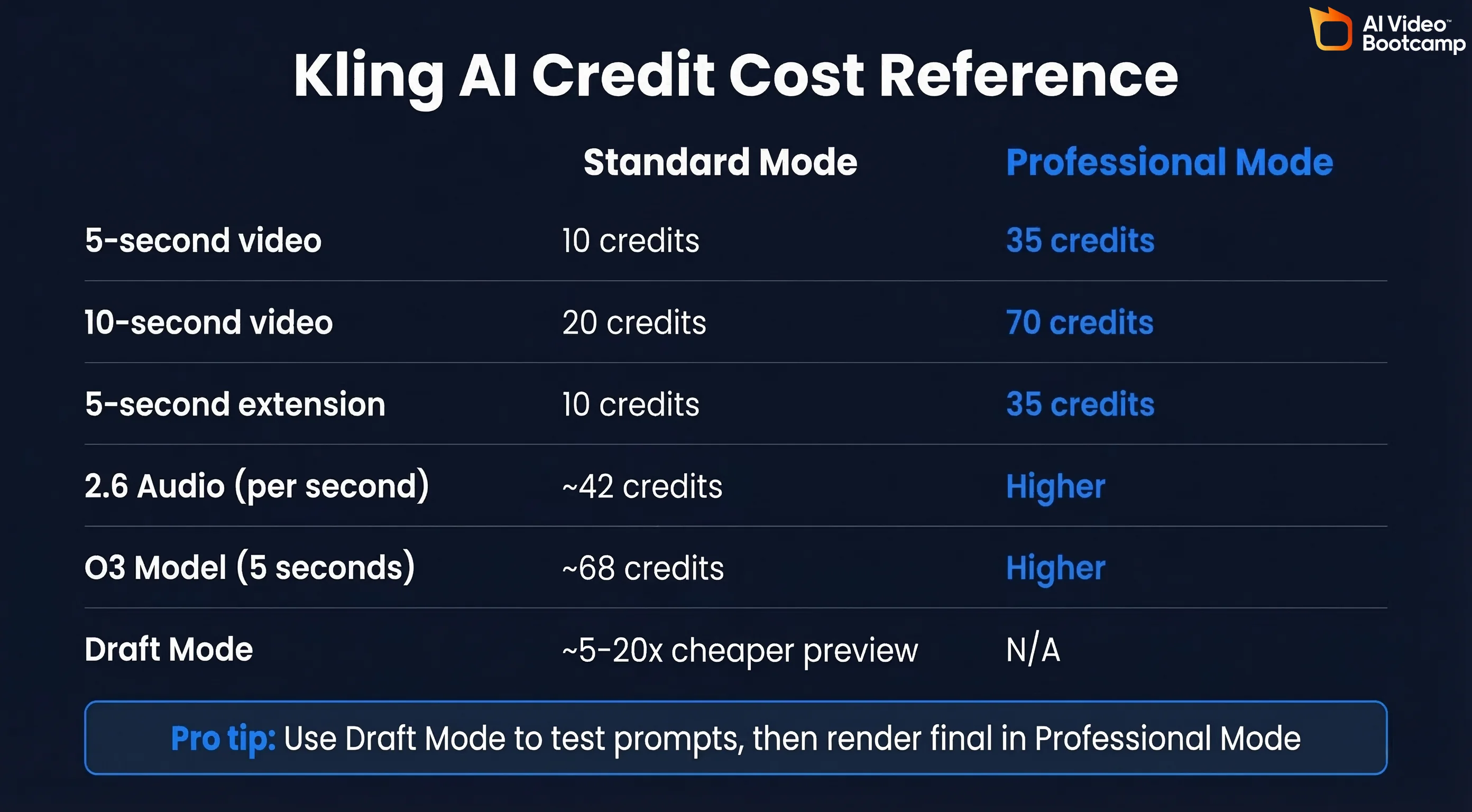
Credit Cost Per Video (Quick Reference)
| Video Type | Standard Mode | Professional Mode |
|---|---|---|
| 5-second video | 10 credits | 35 credits |
| 10-second video | 20 credits | 70 credits |
| 5-second extension | 10 credits | 35 credits |
| Kling 2.6 with audio (per second) | ~42 credits | Higher (varies) |
| Kling O1/O3 (5 seconds) | ~68 credits | Higher (varies) |
Kling AI Features Walkthrough
Now that you know the pricing, let’s dig into the features that actually matter when you sit down to create.
Text-to-Video
This is the bread and butter of Kling AI. You type a prompt describing what you want, choose your settings, and hit generate. The prompt box supports up to about 2,500 characters, giving you plenty of room to be descriptive.
Key settings you will choose:
- Model version: 1.6, 2.5 Turbo Pro, 2.6, 3.0, or O3
- Quality mode: Standard (faster, fewer credits) or Professional (better quality, more credits)
- Duration: 5 or 10 seconds
- Aspect ratio: 16:9 (landscape), 9:16 (vertical/portrait), 1:1 (square), and others
- Negative prompt: Tell Kling what to avoid (blurry, distorted hands, text, etc.)
Image-to-Video
Upload a still image and Kling will animate it. This is incredibly powerful for product photography, turning Midjourney or Nanobanana Pro images into video, or bringing concept art to life.
Important tip: When using image-to-video, your prompt should only describe the motion you want. Do not re-describe what is already in the image. Instead of saying “a woman in a red dress standing on a cliff overlooking the ocean turns to face the camera,” just say “she slowly turns to face the camera, hair blowing in the wind.” Kling already sees the image. Tell it what should move.
You can also use start frame and end frame mode, where you upload two images and Kling generates the motion that transitions between them. This gives you much more control over the final result.
Camera Controls
Kling AI gives you direct control over camera movement, and this is one of the features that separates it from simpler tools. You can specify:
- Pan left/right: Camera slides horizontally
- Tilt up/down: Camera angles vertically
- Zoom in/out: Self-explanatory
- Dolly in/out: Camera physically moves forward or backward (different from zoom)
- Tracking shot: Camera follows the subject
- Crane shot: Camera moves vertically while maintaining focus
- Rack focus: Shift focus from foreground to background or vice versa
You can set these through the camera control panel in the interface, or you can include camera directions directly in your prompt. Both work, but using the control panel tends to give more predictable results.
Lip Sync
Kling’s lip sync feature lets you upload or generate a speaking character and match their mouth movements to audio. With Kling 2.6 and 3.0, lip sync happens natively during generation. You can specify dialogue in your prompt and the character will speak with matched mouth movements. Although we personally feel Veo 3.1 offers better lip-sync, Kling is still a good option.
The lip sync works best with:
- Single characters facing the camera
- Clear, simple dialogue
- Languages that Kling supports natively (English, Chinese, Japanese, Korean, Spanish)
For more complex lip sync needs (like syncing to a specific voiceover), you might still want to generate the video first and then use a dedicated tool like HeyGen for precise audio matching.
Multi-Shot Generation
This is one of Kling 3.0’s standout features. Instead of generating individual clips and stitching them together, Multi-Shot lets you describe up to 6 connected shots and Kling generates them as a cohesive sequence.
For example, you could describe:
- Shot 1: Wide establishing shot of a city street at night
- Shot 2: Medium shot of a woman walking through the crowd
- Shot 3: Close-up of her face as she notices something
- Shot 4: Her POV looking across the street at a glowing storefront
- Shot 5: She crosses the street, camera tracking her from the side
- Shot 6: She pushes open the door and steps inside
Kling 3.0 will generate all six shots with consistent character appearance, coherent lighting, and automatic camera transitions. Multi-Shot supports 4K 60fps output and native audio sync across all shots.
This is a massive time saver for anyone creating short narratives, ads, or social media stories.
Video Extension
Any clip you generate can be extended in 5-second increments, up to the maximum length allowed by your plan (2 minutes on Standard, 3 minutes on Pro and above). Each extension continues from the last frame of your existing video.
A word of caution: quality tends to degrade after about 30 seconds of extensions. Characters may drift in appearance, physics can get wonky, and the overall coherence drops. For best results, keep your total video under 30 seconds, or use Multi-Shot for longer sequences instead of chaining extensions.
Image Generation
Kling is not just a video tool. It also includes an image generator (Kling Image O1) that creates high-quality still images from text prompts. While this is not its primary focus and dedicated image tools like Midjourney still produce superior results for most use cases, it is handy for quickly generating starting frames for image-to-video workflows.
Best Prompts for Kling AI (With Examples)
Good prompts make or break your Kling AI results. After extensive testing, here is what works.
The Prompt Formula
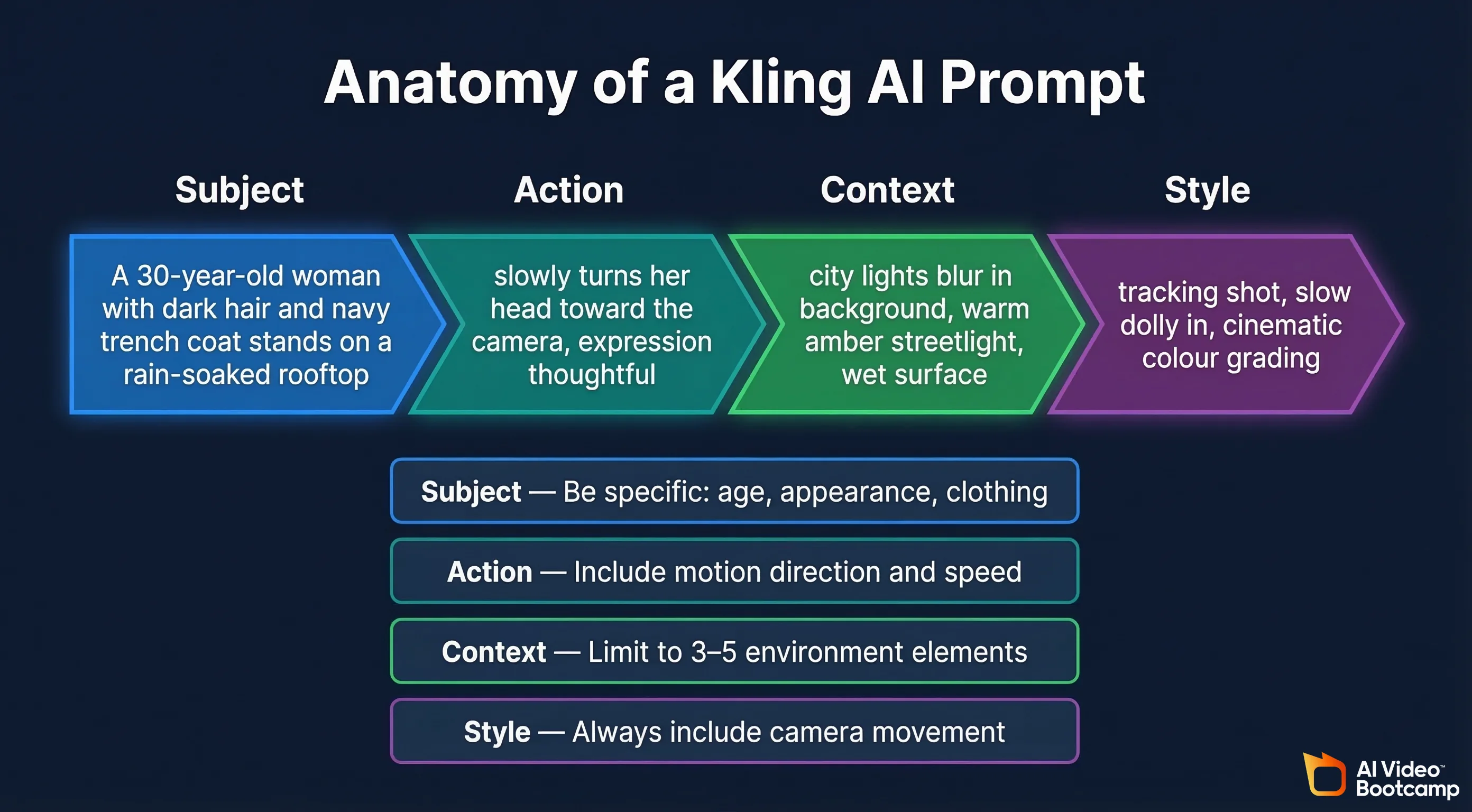
Every effective Kling AI prompt has four parts:
- Subject: Specific details about the main focus (age, appearance, clothing, etc.)
- Action: What the subject is doing, with motion direction and speed
- Context: The environment, time of day, weather, setting details (keep it to 3 to 5 elements)
- Style: Camera movement, lighting, mood, visual style
Example Prompts That Work
Cinematic Character Shot
A 30-year-old woman with dark curly hair and a navy blue trench coat stands at the edge of a rain-soaked rooftop at night. City lights blur in the background. She slowly turns her head toward the camera, expression thoughtful. Tracking shot, slow dolly in, warm amber streetlight reflecting off the wet surface, cinematic color grading.Product Video
A frosted glass bottle of perfume sits on a white marble surface. Soft golden light streams in from the left. The camera slowly orbits the bottle in a smooth 180-degree arc. Water droplets form on the glass surface. Shallow depth of field, luxury advertising aesthetic, clean and minimal.Nature Scene
A bald eagle soars through a misty mountain valley at sunrise. Pine trees cover the slopes below. The camera follows the eagle from behind in a smooth tracking shot, gradually pulling back to reveal the full landscape. Golden hour lighting, National Geographic style, ultra-realistic.Social Media Hook (Vertical 9:16)
Close-up of hands carefully pouring melted chocolate over a layered cake. Steam rises from the warm chocolate. The pour is slow and satisfying. Camera is static, top-down angle, bright studio lighting, food photography style, rich warm tones.Sci-Fi Scene
An astronaut in a white spacesuit floats through the corridor of a dimly lit space station. Red emergency lights pulse along the walls. The astronaut reaches out to grab a floating datapad. Camera follows from behind, slight handheld feel, tense atmosphere, cool blue and red color palette.Real Estate / Architecture
A modern minimalist living room with floor-to-ceiling windows overlooking a mountain lake. Morning sunlight fills the room. The camera glides forward slowly from the entrance toward the windows. A gentle breeze moves the sheer curtains. Wide angle lens, interior design magazine style, bright and airy.Fashion / Lifestyle
A young man in a tailored olive green suit walks confidently down a cobblestone street in Rome. He adjusts his sunglasses. The camera tracks him from the side at a medium distance. Golden afternoon light, shallow depth of field, background softly blurred, editorial fashion film style.Image-to-Video Prompt (When Uploading an Image)
She slowly lifts the coffee cup to her lips and takes a sip, then lowers it and smiles softly. Steam rises from the cup. Subtle camera push in. Natural indoor lighting.Notice how the image-to-video prompt only describes the motion, not the scene. The scene is already defined by your uploaded image.
Prompts to Avoid
Here are prompt mistakes that waste credits:
- Too vague: “A person walking” gives you something generic and lifeless
- Too complex: Cramming 10 different elements into one prompt overwhelms the model, especially on 2.5 Turbo Pro
- Redescribing the image: In image-to-video mode, don’t tell Kling what it can already see
- Missing camera direction: Without camera instructions, you often get a locked-off static shot
- Open-ended motion: “Dancing around” with no start or endpoint can cause the generation to hang at 99%
- Contradictory instructions: “Fast-paced action, slow motion” confuses the model
Negative Prompt Tips
Always use the negative prompt field. Good defaults to include:
blurry, distorted, deformed hands, extra fingers, morphing face, text, watermark, low quality, static, frozenCustomize based on what you are generating. For people, add “extra limbs, crossed eyes, unnatural skin.” For products, add “scratches, dust, incorrect proportions.”
Tips and Tricks for Better Results
These are the things that separate casual users from people who consistently get great output from Kling AI.
1. Always Specify Camera Movement
This is the single most impactful tip. Without explicit camera direction, Kling defaults to a static locked-off shot, which looks boring. Even adding “slow dolly in” or “gentle pan right” makes a massive difference in how cinematic your output feels.
2. Use Professional Mode for Anything You Plan to Publish
Standard Mode is fine for testing, but Professional Mode produces noticeably better results. The textures are sharper, motion is smoother, and overall coherence is higher. Yes, it costs 3.5x more credits, but the quality jump is worth it for final output.
3. Start with Draft Mode on Kling 3.0
Before committing to a full Professional Mode render, use Draft Mode to quickly preview your prompt. You can iterate on the prompt 5 to 10 times in Draft Mode for the same credit cost as a single Professional Mode generation. Once you are happy with the composition and motion, then render the final version.
4. Keep Extensions Under 30 Seconds
Video quality degrades with each extension. The sweet spot for Kling is under 30 seconds total. If you need longer content, use Multi-Shot to create a sequence of connected clips rather than extending a single clip repeatedly.
5. Use Motion Endpoints in Your Prompts
Instead of “she walks forward,” write “she walks forward three steps and stops at the railing.” Giving Kling a clear start and end point for motion prevents the common issue of infinite or looping movement that never resolves.
6. Generate Multiple Variations
Kling is not deterministic. The same prompt can produce very different results on separate generations. If your first result is not quite right, try generating 2 to 3 more before changing your prompt. You might get exactly what you want on the next try.
7. Match Aspect Ratio to Platform
This sounds obvious but many people forget. Use 9:16 for TikTok, Instagram Reels, and YouTube Shorts. Use 16:9 for YouTube, websites, and presentations. Use 1:1 for Instagram feed posts. Setting the right aspect ratio before generating saves you from awkward cropping later.
8. Use Reference Images Strategically
For image-to-video, the quality of your input image directly affects the quality of your output video. Images generated in Midjourney tend to work particularly well because they are high resolution with clean compositions. Screenshots, low-res photos, or images with lots of noise will produce lower quality video.
9. One Subject, One Action
The simpler your scene, the better your results. Kling handles one character doing one thing very well. Two characters interacting is decent. Three or more characters in a complex scene often leads to visual artifacts and confusion. Build complexity gradually.
10. Time Your Credit Usage
If you are on the free tier, remember that credits expire every 24 hours. Set a daily reminder to use them. On paid plans, credits roll over for up to 2 years, so there is less urgency, but it is still smart to batch your work into focused sessions rather than generating random clips throughout the month.
Kling AI vs Competitors
How does Kling stack up against the other major AI video tools in 2026? Here is an honest comparison.
Kling AI vs Google Veo 3.1
Veo is Google’s AI video generator, known for strong prompt understanding and natural motion.
- Video quality: Veo 3.1 produces excellent quality with very natural motion and good physics understanding.
- Video length: Up to 60 seconds, longer than Runway but shorter than Kling.
- Audio: Veo generates audio natively, similar to Kling 2.6.
- Availability: Veo is available through Google’s platforms but has limited access and can be harder to get started with.
- Best for: Choose Veo if you are already in the Google ecosystem and want excellent quality for short clips. Choose Kling for longer videos and more granular control over camera and features.
Kling AI vs Seedance
Seedance is a newer entrant from ByteDance that has been gaining attention for dance and motion-heavy content.
- Motion quality: Seedance excels at complex human motion, especially dance choreography.
- Video length: Generally shorter than Kling.
- Features: More limited feature set compared to Kling’s extensive toolbox.
- Best for: Choose Seedance for dance and performance content specifically. Choose Kling for general-purpose video generation.
Who Is Kling AI Best For?
Kling AI is not for everyone, and that is fine. Here is who will get the most value from it.
Social Media Creators
If you make content for TikTok, Instagram, or YouTube Shorts, Kling is a powerhouse. The vertical video support, quick generation times, and built-in audio make it perfect for producing scroll-stopping content without a production budget. The Pro plan at $25.99/month is probably your sweet spot.
Product Marketers and E-Commerce Sellers
Turn product photos into polished video ads. Upload your product image, add a prompt describing the motion you want, and you have a professional-looking product video in minutes. This is especially valuable for Amazon sellers, Shopify store owners, and anyone running paid ads who needs fresh video creative regularly.
Indie Filmmakers and Storytellers
The Multi-Shot feature in Kling 3.0 makes it genuinely useful for narrative content. You can create short films, animated stories, and concept trailers. The 3-minute maximum length gives you much more room to work with than any competitor. Pair it with Descript or CapCut for editing, and ElevenLabs for custom voiceovers, and you have a complete production pipeline.
Freelance Video Editors and Agencies
If you create video content for clients, Kling can be a valuable addition to your toolkit. Use it for B-roll, establishing shots, product animations, and concept visualizations. The commercial license on all paid plans means you can use the output in client work.
Educators and Course Creators
Need visual content for online courses? Kling can generate explainer visuals, scenario demonstrations, and engaging intro/outro clips. Combine with Canva for graphics and Synthesia for talking-head videos to build a complete course production workflow.
Frequently Asked Questions
Is Kling AI free to use?
Yes, there is a free tier with 66 daily credits. You can generate a few short videos per day at 720p with a watermark. It is enough to test the platform but not enough for serious projects.
Can I use Kling AI videos commercially?
Yes, all paid plans include a commercial license. You can use generated videos in ads, client projects, YouTube content, social media, and products. The free tier does not include commercial rights.
How long does it take to generate a video?
Standard Mode typically takes 1 to 3 minutes for a 10-second clip. Professional Mode takes 3 to 8 minutes. Draft Mode on Kling 3.0 can generate previews in under a minute. Processing times vary based on server load and your plan’s priority level.
Do unused credits roll over?
On paid plans, yes. Monthly credits roll over and remain valid for up to 2 years. On the free tier, credits expire every 24 hours with no rollover.
What is the difference between Standard Mode and Professional Mode?
Standard Mode generates faster and uses fewer credits but produces lower quality output. Professional Mode uses 3.5x more credits but delivers sharper textures, smoother motion, and better overall coherence. Use Standard for testing and Professional for final output.
Can I upload my own audio for lip sync?
Yes, Kling supports uploading audio files that the AI will sync character lip movements to. For best results, use clear speech with minimal background noise.
Does Kling AI work on mobile?
Yes, Kling AI runs in your mobile browser. The experience is better on desktop for detailed work, but you can generate and preview videos on your phone.
What languages does Kling support for audio generation?
Kling 2.6 and 3.0 support audio generation in at least five languages: English, Chinese, Japanese, Korean, and Spanish. More languages may be added over time.
Can I cancel my subscription anytime?
Yes, you can cancel anytime. Your credits remain available until the end of your billing period. Some users have reported issues with cancellation, so make sure to confirm cancellation through your account settings and check that recurring charges stop.
What resolution does Kling output?
Free tier outputs at 720p max. All paid plans output at 1080p. Kling 3.0’s Multi-Shot feature supports up to 4K 60fps.
Final Thoughts
Kling AI has evolved from an interesting experiment into one of the most capable AI video generators available in 2026. The combination of long video support, built-in audio generation, advanced camera controls, and competitive pricing makes it a serious tool for creators at every level.
Is it perfect? No. Character consistency still is not as strong as Runway for complex scenes. The credit system can be confusing at first. Quality degrades on longer extensions. And pricing has trended upward, so what you pay today might increase tomorrow.
But for the price, the feature set is hard to beat. If you are a social media creator, product marketer, indie filmmaker, or anyone who needs to turn ideas into video quickly, Kling AI deserves a spot in your toolkit.
Start with the free tier to get comfortable with the interface. Move to the Pro plan when you are ready to create content you are proud to publish. And keep an eye on Kling 3.0 as it continues to roll out new capabilities throughout 2026.
The AI video space is moving incredibly fast. Six months from now, everything might look different. But right now, in March 2026, Kling AI is one of the best options out there for turning your creative vision into actual video content.
Join the AI Video Community
If you want more tips and training on Kling and other video models, consider joining the biggest AI Video/Image community in the world, AI Video Bootcamp. We run you through step-by-step how to use all of the latest models and keep you up-to-date in this ever-changing space.
Happy creating.