
Pricing verified April 30, 2026.
Every search result for “image to video AI free” is lying to you. Not aggressively. More like lying by omission.
They list twelve tools. Each one is described as “free.” They bury the reality somewhere around paragraph four: Runway gives you 125 credits one time and that is your lifetime supply. Luma locks you into draft resolution with a watermark. Pika caps you at 480p. Half the “free tools” in those articles are affiliate plays for $12 to $30 monthly subscriptions.
We tested every major image-to-video AI tool with a free tier. We tracked exact credit limits, resolution caps, watermark policies, and whether you can actually use the output commercially. Then we separated the tools that are genuinely free from the ones running a free trial dressed up as a free plan.
This is the guide we wished someone had written before we burned credits on tools that were never actually free.
If you want the full paid-tool rankings, that is over at our complete AI video generator rankings for 2026. If you want the broader free video tool landscape (including text-to-video), see our free AI video generators guide. This article is specifically about turning your existing photos and images into video without spending a dollar.
Image-to-Video Pricing Note
Pricing last verified April 30, 2026. API rates are sourced from fal.ai; consumer subscription plans are from each product’s official site. Screenshots and UI references elsewhere in this article may reflect earlier versions. Prices change frequently - double-check with fal.ai or the vendor’s site before making spending decisions.
Why Image-to-Video Is Better Than Text-to-Video for Most Creators
Image-to-video produces more consistent, controllable results because the AI starts with real visual data instead of interpreting a text description from scratch. Your source image locks the visual identity from frame one, so the prompt only needs to describe motion and camera direction. This eliminates the randomness that plagues text-to-video generation.
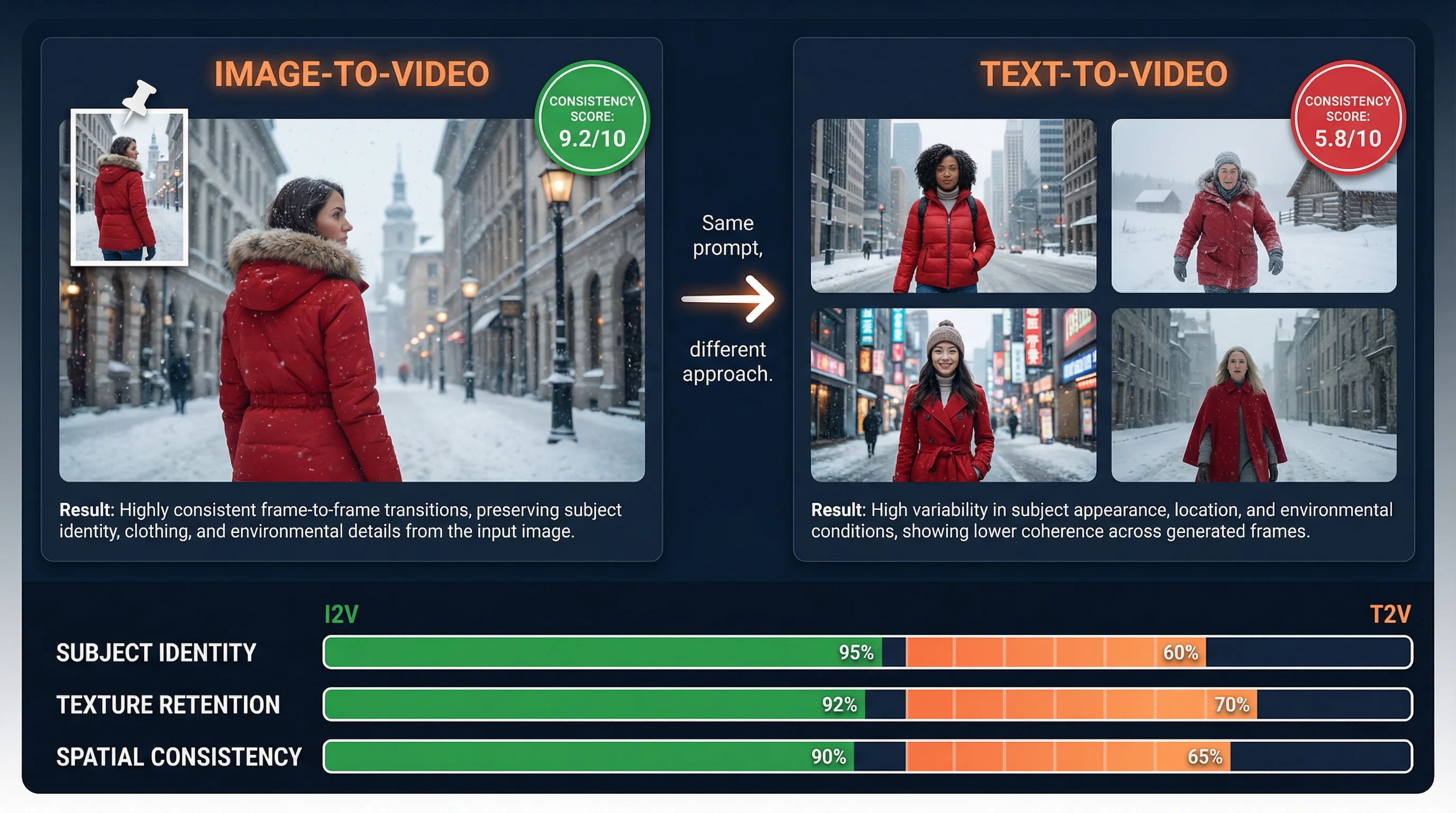
Image-to-video workflows account for 32.6% of all AI video generation orders in 2026, and that share is growing fast. There is a reason experienced creators overwhelmingly prefer starting from an image rather than typing a text prompt into the void.
When you use text-to-video, the AI has to interpret your written description and guess what the scene looks like. That introduces massive randomness. You might describe “a woman in a red jacket walking through a snowy city” and get ten completely different people, ten different cities, ten different snow densities. You are fighting the model’s interpretation on every single generation.
Image-to-video eliminates that problem. You upload a photograph or an AI-generated image, and the model already knows exactly what the scene looks like. Your prompt only needs to describe how things move. Camera direction. Subject action. Atmosphere shifts. The visual identity is locked from frame one.
This matters for three specific reasons:
Character consistency. If you are building content around a recurring character, an AI avatar, or a brand mascot, image-to-video lets you feed the same reference image into every generation. The face stays the same. The outfit stays the same. This is the foundation of character consistency that separates amateur AI content from professional output.
E-commerce product videos. Brands are transforming static product photography into dynamic video ads without a single video shoot. Fashion D2C, beauty, food and beverage brands are all using this workflow. Early data indicates AI assistance on video projects saves an average of fourteen hours per project and reduces per-video costs by approximately $1,500.
Higher quality floor. Across benchmark evaluations like VBench (a 16-dimension video quality framework), image-to-video consistently scores higher on subject identity preservation, texture retention, and spatial consistency than text-to-video from the same model. You are starting with real visual data instead of asking the AI to imagine everything from scratch.
If you already have product shots, character reference images, headshots, or any existing photo library, image-to-video is the faster, more controllable, and more consistent path to video content.
The Technical Shift That Made This Possible
Between 2024 and 2026, AI video generation shifted from pixel diffusion to physics-aware “Kinetic Logic” architectures. Models now understand gravity, spatial depth, and object permanence before rendering a frame. This shift, combined with single-stream transformers that generate audio and video simultaneously, is why free tools produce cinematic output today.
Understanding what changed under the hood between 2024 and 2026 explains why free image-to-video tools are suddenly this good. If you just want the tool recommendations, skip to the next section. If you want to understand why these tools work so differently now, keep reading.
The dominant approach in 2024 was simple pixel diffusion. Models guessed the next logical arrangement of pixels based on two-dimensional training data. This worked well for static images, but when applied to temporal video generation, it produced what the industry called “spatial melting.” Objects lost their structural integrity as they moved through simulated three-dimensional space. Characters morphed into entirely different people when the camera angle shifted. It was uncanny and commercially useless.
By 2026, the best free image-to-video tools have adopted what the AI industry calls “Kinetic Logic.” Instead of guessing pixel placement, the neural network is forced to understand physics, gravity, spatial depth, object permanence, and lighting constraints before rendering a single frame. This manifests in several breakthrough capabilities.
First-and-Last Frame Control. Found in models like Alibaba’s Wan family, this lets you provide both a starting image and an ending image. The AI mathematically interpolates the motion, physics, and lighting shifts between those two anchor points. This ensures fluid, physically logical transitions that maintain structural integrity. No more temporal morphing.
Direct Manipulation. Runway Gen-4 Turbo introduced what functions as a digital choreography interface. Instead of relying on text prompts alone, you drag specific vectors across a static photograph to dictate explicit directional movement. You physically map the trajectory of a subject’s head, the sway of foliage, or camera displacement. This turns the generation engine into a precise cinematic instrument.
Single-Stream Transformer Architecture. The biggest technical leap is the integration of audio directly into the visual generation pipeline. Older systems used multi-stream transformers where separate streams processed video and audio separately, then fused them in post-processing. The result was poor lip synchronization and noticeable latency. Models like daVinci-MagiHuman pioneered a single-stream approach where text, image, video, and audio tokens all pass through a unified transformer. The result is native audio-visual synchronization that aligns lip movements, micro-expressions, and physical gestures with generated speech at the frame level.
These are not incremental improvements. They are architectural rewrites that fundamentally changed what a free image-to-video AI tool can produce.
”Truly Free” vs. “Free Trial”: The Distinction Nobody Makes
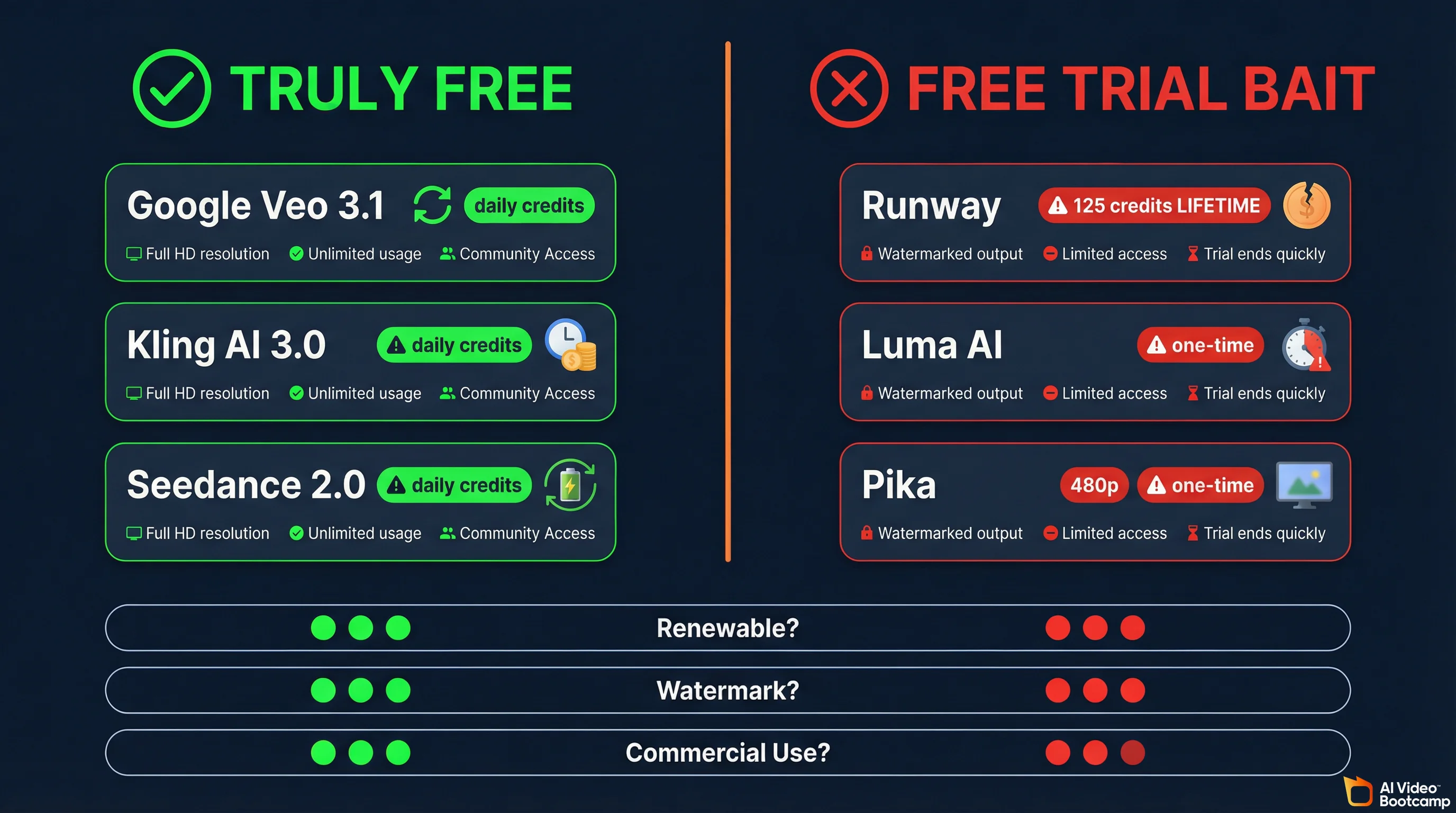
Truly free means daily renewable credits that never run out. Free trial means a one-time credit dump designed to get you hooked on a subscription. Google Veo 3.1, Kling AI, and Seedance 2.0 are genuinely free with daily refreshes. Runway, Luma, and Pika are trials disguised as free plans.
This is the most important section of this article. Every other guide lumps these together. They should not.
Truly free means you can use the tool indefinitely without paying. There may be rate limits or daily caps, but the tool does not run out. You are not burning through a one-time allotment that dries up after three test videos.
Free tier / free trial means you get a small taste designed to get you hooked so you subscribe. It is a free trial with better marketing. The U.S. Federal Trade Commission’s updated Negative Option Rule specifically requires that subscription conversion terms be disclosed clearly and conspicuously before any charge occurs.
Here is how the major image-to-video tools actually break down:
| Tool | Free Credits | Renewable? | I2V Resolution | Watermark? | Max Clip | Native Audio? | Commercial Use? |
|---|---|---|---|---|---|---|---|
| Google Veo 3.1 | Daily quota | Yes, daily | 1080p (4K upscale) | No | 8s | Yes | Yes |
| Kling AI 3.0 | 66/day | Yes, daily | 720p | Yes | 10s | Yes | No |
| Seedance 2.0 | 2-3 clips/day | Yes, daily | Up to 2K | Yes | 5-8s | Yes | Limited |
| Hailuo 2.3 | ~3 clips/day | Yes, daily | 720p | Yes | 6s | Limited | No |
| PixVerse V5 | 60/day + 90 initial | Yes, daily | 720p | Yes | 5s | No | No |
| Wan 2.2 (self-hosted) | Unlimited | N/A | 1080p | No | 15s | No | Yes |
| Runway Gen-4 | 125 ONE TIME | No | 720p | Yes | 10s | No | No |
| Luma Ray 3.14 | Limited | No | Draft | Yes | 5s | No | No |
| Pika 2.5 | 80/month | Monthly | 480p | Yes | 5s | No | No |
| Sora 2 | NONE | N/A | 1080p | No | 20s | Yes | Paid only |
Bookmark that table. It is the comparison that does not exist anywhere else.
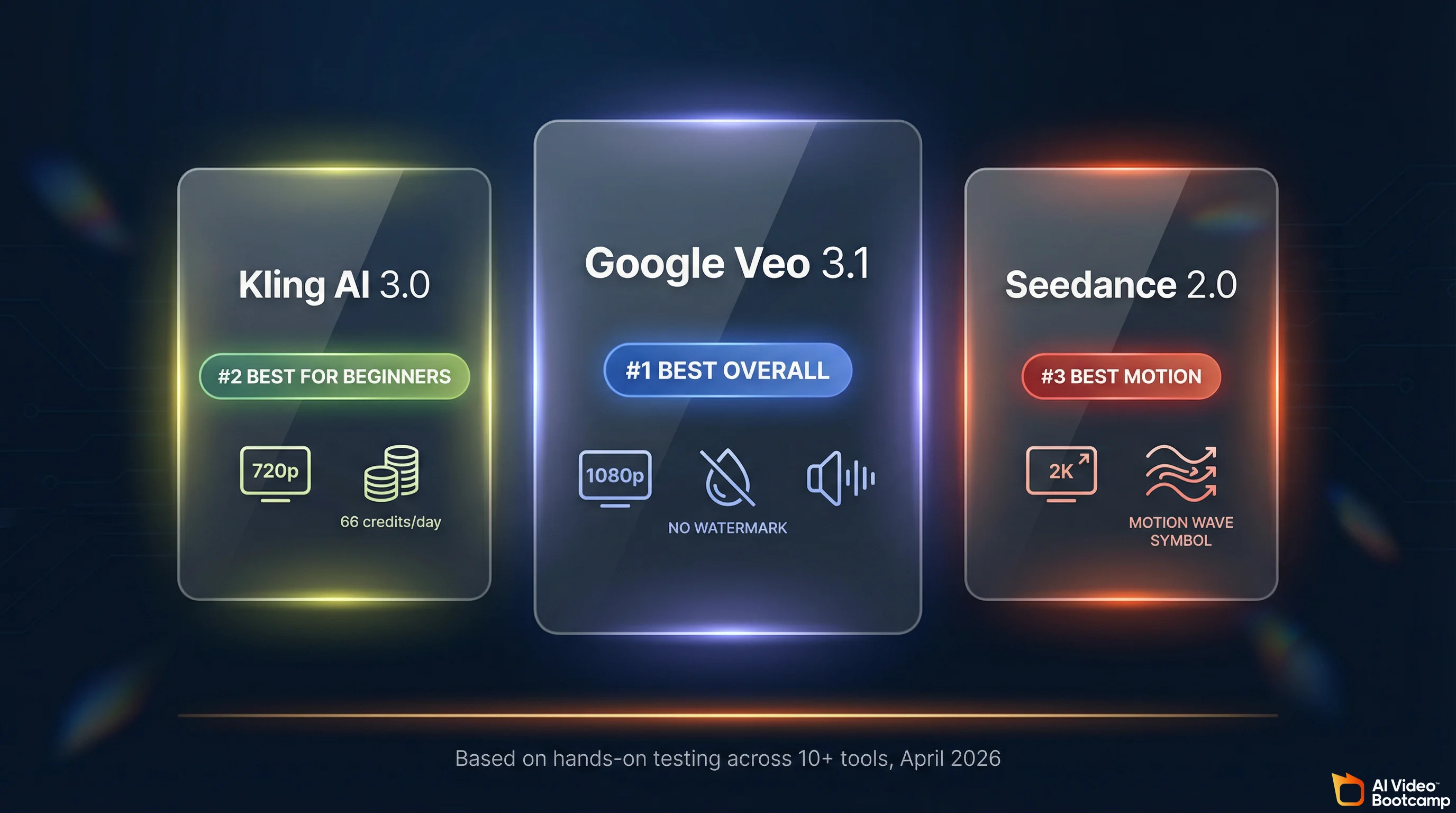
#1: Google Veo 3.1 (AI Studio): Best Overall Free Image-to-Video
Google Veo 3.1 via AI Studio is the best free image-to-video tool in 2026. It produces 1080p output with native synchronized audio, no watermark, and commercial usage rights on a daily renewable basis. Its Ingredients to Video feature supports multi-reference images for character consistency across clips.
If you search “free image to video AI,” Google AI Studio barely appears in the results. This is baffling, because it is the most generous genuinely-free image-to-video option available in 2026 by a significant margin.
Google Veo 3.1 generates video with synchronized dialogue, environmental sound, and music baked directly into the output. Not slapped-on stock audio. Audio that matches lip movements and scene context. The model produces native, professional-grade 48kHz audio alongside high-fidelity visual generation, eliminating the need for secondary sound effect processing.
What makes it the best free I2V tool:
The standout feature is Ingredients to Video. You can upload up to four reference images: a character face, a specific outfit, an environment, and a style reference. Veo 3.1 maintains visual consistency across the generated video, keeping your character looking the same even as the setting changes. This is the only free tool offering multi-reference image-to-video with character consistency built in.
Output hits 1080p natively with 4K upscaling available. For the first time in a free tool, native 9:16 aspect ratio output is supported, which is critical for TikTok, Instagram Reels, and YouTube Shorts without quality loss from cropping.
No watermark. Commercial use allowed. Daily renewable access.
The catches:
Rate limiting is real. You cannot spam hundreds of generations. Google throttles heavy usage dynamically, and the exact daily limits are not published. Queue times can be significant during peak hours. The interface is a developer tool, not a polished consumer product. Content filtering is aggressive, so some creative prompts get flagged.
When to use it: Highest quality single clips. Multi-reference character consistency. Any project where you need no watermark and commercial rights at zero cost. This is your first choice for serious image-to-video work on a $0 budget.
For a deeper dive into Veo’s capabilities and pricing tiers, see our Veo 3.1 Lite complete guide.
#2: Kling AI 3.0: Best for Beginners
Kling AI 3.0 is the best free image-to-video tool for beginners in 2026. It provides 66 renewable daily credits, a browser-based interface with no downloads, and the industry’s best human anatomy rendering. The free tier is watermarked and capped at 720p, but the learning curve is the smoothest available.
If Google Veo 3.1 is the quality champion, Kling AI 3.0 is the accessibility champion. Over 60 million creators have used Kling to generate more than 600 million videos, and the platform hit $240 million in annual revenue by end of 2025. There is a reason it scaled that fast: the interface is genuinely intuitive and the free tier is genuinely usable.
Kling 3.0 is recognized across the industry as the “Anatomy Specialist.” For creators searching for a free image-to-video AI that accurately renders complex human body mechanics, Kling solves persistent historical glitches like extra fingers, structural melting during fast movement, and unnatural joint articulation better than any other free tool.
What you get for free:
66 credits per day, refreshed every 24 hours. That translates to approximately six five-second standard-definition videos or three ten-second standard videos daily. Pro mode quality costs 25 credits for five seconds and 50 credits for ten seconds, so you are looking at one to two higher-quality clips per day on free credits.
The platform runs entirely in your browser at klingai.com. No downloads, no installations. Image-to-video is a core feature: upload your photo, write a motion prompt, and generate. The Motion Brush feature provides granular manual animation control over specific elements within a scene, which is a significant advantage for precise image-to-video work.
The catches:
Free-tier outputs are watermarked and restricted to 720p resolution. 1080p and 4K require paid plans starting at roughly $6 per month. Failed generations consume credits without automatic refunds, and multiple users report a 30-40% failure rate during peak hours. That means your actual usable output from 66 credits is significantly lower than the theoretical maximum. Commercial use is not permitted on the free tier.
When to use it: Total beginners who want the easiest learning curve. Quick social media tests. Situations where watermark is acceptable (like internal brainstorming or content drafts). The AI Director mode for multi-shot sequences (up to 6 connected shots) is unique among free tools.
For a full breakdown of every Kling feature, pricing plan, and prompt strategy, see our Kling AI complete guide.
#3: Seedance 2.0: Best Motion Quality
Seedance 2.0 from ByteDance produces the highest motion quality among free image-to-video tools. Its “reference everything” system lets you combine a source image, a motion reference video, and an audio file for precisely choreographed output. Free access provides two to three daily clips with regional variation.
Developed by ByteDance, the parent company of TikTok, Seedance 2.0 operates at the cutting edge of multi-modal generative technology. The model achieved such high fidelity in replicating established cinematic styles that it faced notable legal threats from major Hollywood studios, streaming platforms, and the SAG-AFTRA actors’ union. We covered this in detail in our Seedance 2.0 deep dive.
What makes it special for image-to-video:
Seedance 2.0 excels in what the industry calls “reference everything” capabilities. You can upload a primary image to define the visual subject, a secondary video to dictate motion trajectory or performance rhythm, and an audio file to drive the pacing. The fidelity to the input reference image is exceptionally strong, making it the ideal engine for converting static product photography into high-definition commercial showcases.
For high-volume content, ByteDance also released Seedance 2.0 Fast, an optimized turbo variant that achieves inference speeds near that of 480p output while delivering 720p or 1080p resolution.
Free access:
The free tier generates approximately two to three standard five-second video clips per day. However, free access is region-dependent and platform-dependent. The international-facing platform Dreamina provides roughly 260 initial credits with ongoing daily stipends of around 60 credits, though outputs bear a watermark. The Chinese domestic equivalent, Xiaoyunque, is significantly more generous with 1,200 initial credits and 120 daily accumulating credits. Another portal, Doubao, allows ten free generations per day.
The catches:
Access fragmentation is real. The April 2, 2026 update changed quotas and the free-access experience depends on which platform surface you use and your geographic region. Watermarked on free tier. Commercial rights are limited without a paid plan.
When to use it: Action-heavy content where motion quality matters most. Product videos requiring absolute fidelity to the source photograph. Creators who are comfortable navigating regional platform differences for better free access.
For a head-to-head comparison with the top competitors, see our Seedance vs. Kling vs. Veo comparison.
#4: Hailuo AI (MiniMax 2.3): Fastest Generation Speed
Hailuo AI by MiniMax is the fastest free image-to-video generator, finishing five-second clips in under thirty seconds. It excels at realistic human facial expressions and micro-movements. The free tier provides approximately three daily clips at 720p with a watermark.
If your priority is speed over resolution, Hailuo by MiniMax delivers. It finishes high-quality five-second clips in under thirty seconds, exhibiting particularly strong capabilities in rendering realistic human facial expressions and micro-movements.
Free access: Approximately three videos per day on the daily refresh. Hailuo previously offered 300 free credits valid for three days upon signup, but the ongoing free tier is capped at roughly three daily clips. Outputs are watermarked, 720p, and six-second default clips.
When to use it: Rapid iteration and testing. When you need to quickly see how a photo will look animated before committing to a higher-quality generation on another platform. The generation speed is unmatched.
#5: PixVerse V5: Most Generous Daily Credits
PixVerse V5 offers the most generous free daily credit refresh among image-to-video tools, with 60 credits per day plus 90 initial credits on signup. This accommodates ten to thirty generations daily depending on settings, making it ideal for high-volume testing and experimentation.
PixVerse has established itself as a solid all-in-one creator workflow, particularly noted for its precision in facial mapping and its rapid deployment of trending social media effects. Following its Series C funding round in March 2026, the platform expanded its feature set significantly.
Free access: 60 credits per day with a daily replenishment cycle, plus 90 initial credits on signup. Depending on resolution and settings, this accommodates roughly ten to thirty generations per day. That is the most generous daily credit refresh among free image-to-video tools.
The catches: Outputs on the free tier are capped at 720p and carry a PixVerse watermark. The platform offers a character reference system that maintains identity traits across multiple generations, but quality does not match the top-tier tools. Think of PixVerse as a volume play, not a quality play.
When to use it: High-volume testing and experimentation. Social media content creators who need quantity. Marketing teams trying out multiple visual concepts quickly.
The Open-Source Path: Unlimited and Free (If You Have the Hardware)
Wan 2.2 and daVinci-MagiHuman are fully open-source image-to-video models released under Apache 2.0. They run locally on your own GPU with zero credit limits, no watermarks, and full commercial rights. The tradeoff is hardware: you need an NVIDIA GPU with at least 24GB of VRAM.
If you own an NVIDIA GPU with 24GB or more of VRAM, two open-source models eliminate credit limits, watermarks, and commercial restrictions entirely.
Wan 2.2 (Alibaba) is the open-source king of image-to-video. The dedicated I2V-A14B model supports up to fifteen-second multi-shot video generation natively synchronized with audio. It demonstrates “clone-level consistency” where a reference photograph maintains exact facial features, distinctive clothing textures, and body proportions across wildly different camera angles. It supports First-and-Last Frame Control, letting you provide both a starting and ending image so the AI interpolates a physically logical transition between them.
The Wan 2.2 I2V model generates a five-second 720p video in under nine minutes on a single consumer GPU like an RTX 4090. It is fully open source on GitHub under Apache 2.0 with no commercial restrictions. You can run it locally via ComfyUI, completely bypassing subscription fees.
daVinci-MagiHuman (GAIR) is the open-source champion for human portrait animation. This fifteen-billion-parameter model achieves state-of-the-art lip synchronization directly from a static photograph and a text script. It natively supports seven languages: English, Mandarin, Cantonese, Japanese, Korean, German, and French. In benchmark testing, daVinci-MagiHuman achieved an 80% win rate against leading open competitors like OVI 1.1. Generating a five-second 1080p video takes 38 seconds on an H100 GPU. The entire software stack is released under Apache 2.0 on GitHub.
For a complete guide on MagiHuman’s capabilities, see our daVinci-MagiHuman complete guide.
When to go open-source: You have a dedicated GPU (RTX 3090 or RTX 4090). You need unlimited generation volume. You require no watermark and full commercial rights. You want maximum control over the generation process. You value privacy and want everything running locally. For hardware requirements and GPU recommendations, see our guide on how to learn AI video in 2026 which covers VRAM requirements in detail.
The “Free Trial” Trap: Tools That Are Not Actually Free
Runway, Luma Dream Machine, Pika, and Sora 2 appear in every “free image to video” article but are not genuinely free. Runway gives 125 lifetime credits (roughly 25 seconds of video, total, forever). Luma locks free users into draft resolution. Pika caps at 480p. Sora removed its free tier entirely.
These tools appear in every “free image to video AI” article. They are not free. They are trials. Here is exactly what you get.
Runway Gen-4 Turbo gives you 125 credits total. One time. Not renewable. Gen-4 Turbo costs 5 credits per second of video, so 125 credits equals roughly 25 seconds of video. That is approximately five five-second clips and then you are done forever. The Standard plan starts at $12 per month. Runway’s strength is its Direct Manipulation interface where you paint motion vectors directly onto static images to dictate exact directional movement. It produces undeniably cinematic output. But calling 125 lifetime credits “free” is a stretch.
Luma Dream Machine (Ray 3.14) offers a free plan with limited credits, draft resolution, watermark, and non-commercial license. Ray 3.14 is production-grade with native 1080p output and 4x faster generation speed, but you need the Plus plan at $23.99 per month to remove watermarks and get commercial rights. The free tier is essentially a demo.
Pika 2.5 provides 80 monthly credits for image-to-video at 480p. That is roughly six five-second generations per month at a resolution that was unacceptable in 2025, let alone 2026. Pika’s “Pikaffects” feature (crushing, melting, inflating, or exploding targeted objects) is creative but the free tier resolution makes it unusable for anything beyond testing.
Sora 2 (OpenAI) has no free tier at all. Free access was removed in January 2026. You need ChatGPT Plus ($20 per month) or Pro ($200 per month). The model produces exceptional physics simulation and 20-second native clips, but this is a paid tool. Listing it as “free” in any article is misinformation.
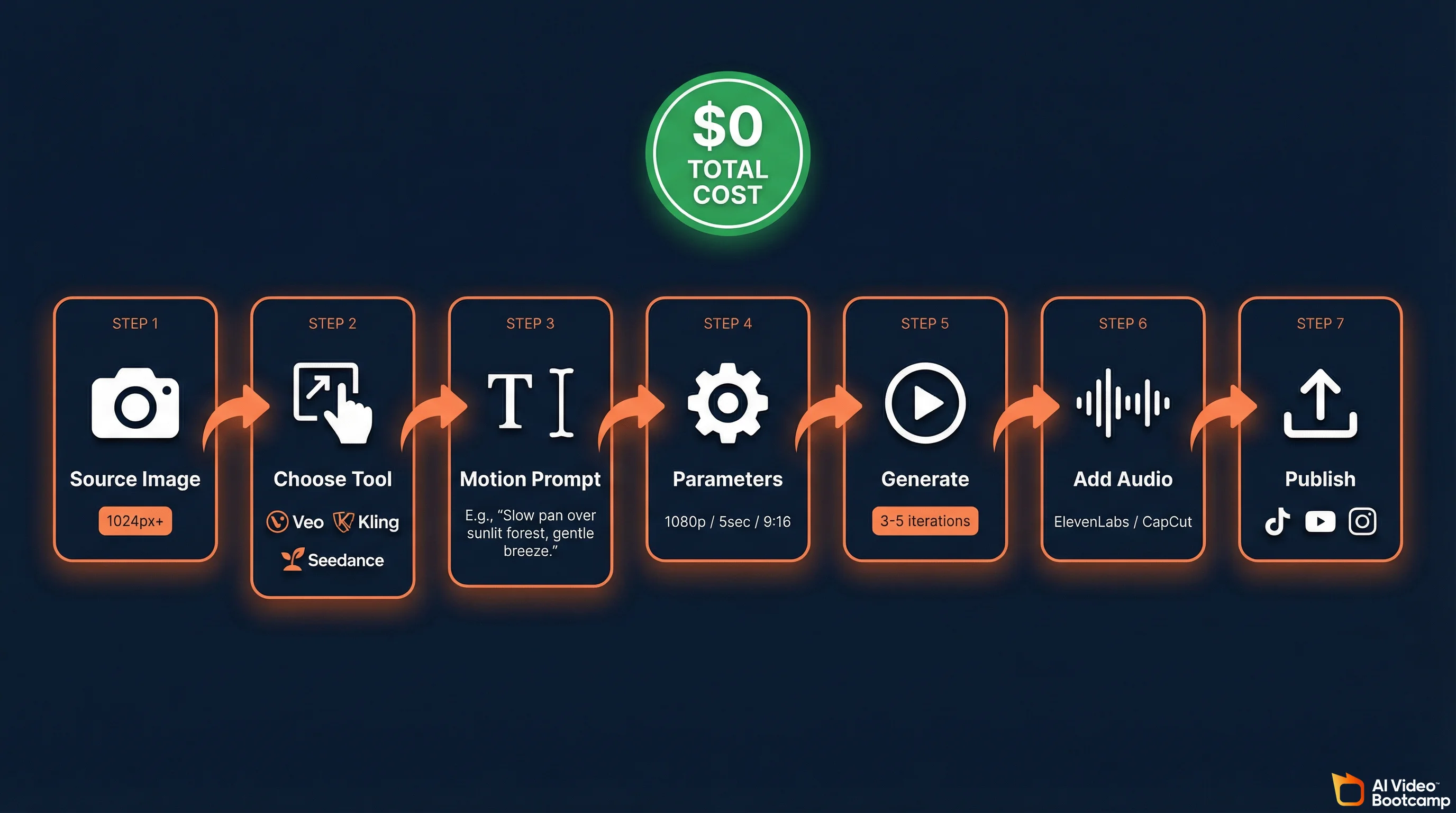
Step-by-Step: How to Turn a Photo Into an AI Video for $0
The complete image-to-video pipeline costs zero dollars. Generate or select a source image, upload it to Google Veo 3.1 or Kling AI, write a kinetic motion prompt describing camera movement and subject action, generate and iterate three to five times, add free audio via ElevenLabs, and edit in CapCut Desktop.
This is the practical workflow. Every step costs zero dollars.
Step 1: Prepare Your Source Image
The quality of your input image directly determines the quality of your output video. This is the single biggest variable most beginners ignore.
Your source image should be at minimum 1024x1024 pixels. Higher resolution is always better. Well-lit, high-contrast images with clean backgrounds produce dramatically better results than dark, noisy, or cluttered photos. For character image-to-video, front-facing or three-quarter angle portraits work best. For product image-to-video, clean backgrounds with consistent lighting across multiple angles are ideal.
If you do not have a suitable source image, you can generate one for free. Google AI Studio with Gemini or NanoBanana PRO can create photorealistic reference images at zero cost. Midjourney produces excellent reference images if you have a subscription. For tips on creating photorealistic source images, see our photorealistic AI prompts guide.
Step 2: Choose Your Tool Based on Your Specific Need
Not every image-to-video tool excels at the same thing. Match your tool to your use case:
| Use Case | Best Free Tool | Why |
|---|---|---|
| Highest single-clip quality | Google Veo 3.1 | 1080p, no watermark, native audio |
| Total beginner, easiest interface | Kling AI 3.0 | Browser-based, intuitive UI |
| Action scenes, dynamic motion | Seedance 2.0 | Strongest motion physics |
| Human portrait / talking head | daVinci-MagiHuman | Best lip sync from single photo |
| Character consistency across scenes | Veo 3.1 Ingredients to Video | Multi-reference image support |
| Volume testing, many iterations | PixVerse V5 | 60 daily credits |
| Unlimited, no restrictions | Wan 2.2 (local GPU) | Open source, no limits |
Step 3: Write a Kinetic Motion Prompt (Not a Description)
This is where most beginners go wrong. They describe what the image looks like. The model already knows what the image looks like. It is looking at it.
Your prompt needs to function as a camera operator’s instruction manual. Describe how things move, not what they are.
Bad prompt: “A highly detailed futuristic car on a neon street.” The model already derives this information from your uploaded photo. This is useless for guiding motion.
Good prompt: “Camera initiates a low-angle tracking shot moving right to left. The car headlights illuminate, casting hard, volumetric shadows against the wet asphalt. Subtle atmospheric fog rolls across the foreground. Smooth, twenty-four frames per second cinematic motion.”
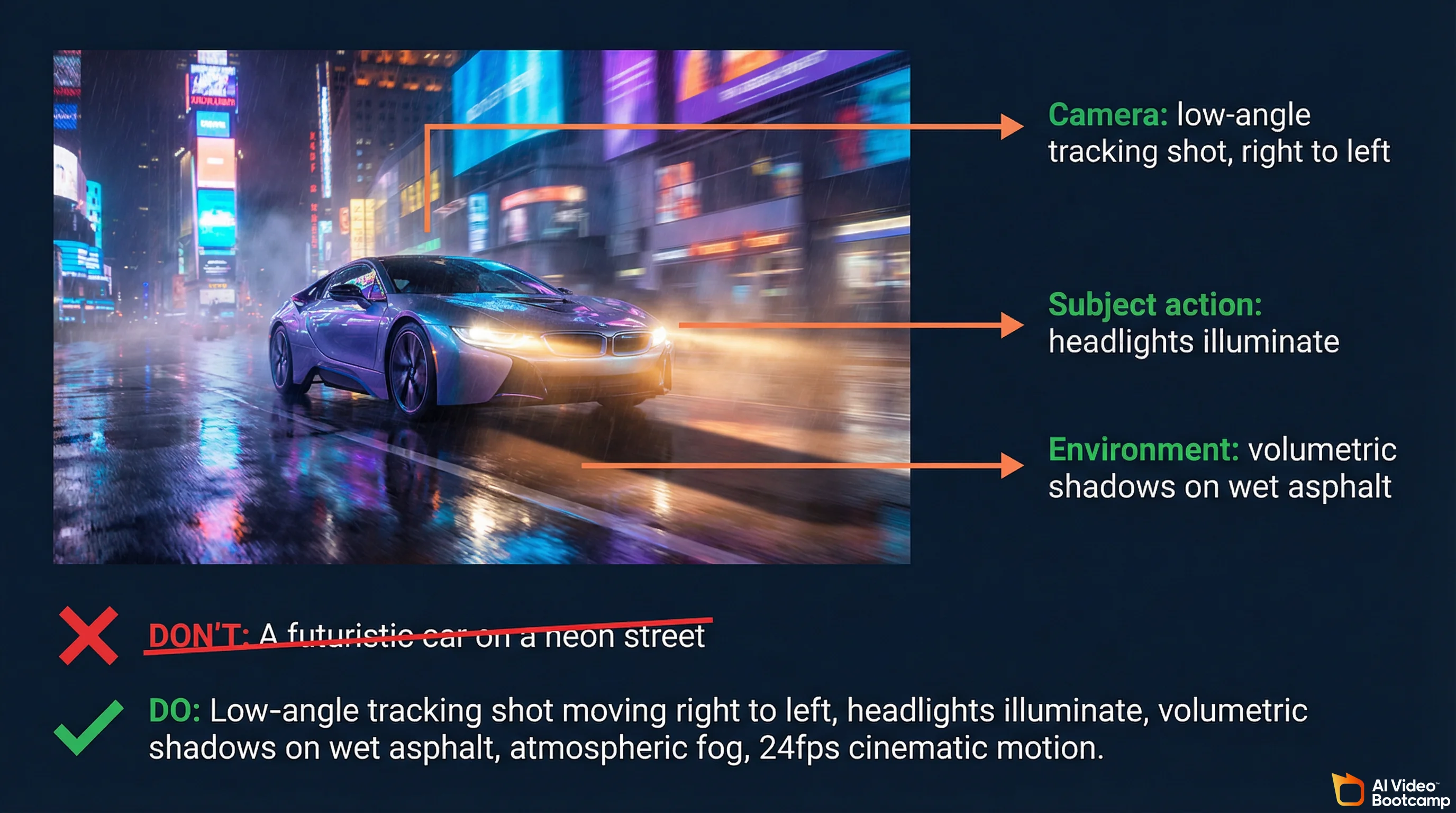
Key prompting principles for image-to-video:
Use cinematography vocabulary. Terms like “dolly forward,” “rack focus,” “Dutch angle,” “bird’s eye view,” “rim-lit silhouette,” and “golden hour lighting” communicate instantly to the AI. For a complete guide on writing effective video prompts, see our AI video prompting guide.
One primary motion per generation. Overly complex instructions produce confused, inconsistent output. Focus on one camera movement or one subject action per clip, then combine clips in editing.
State what you want, not what you do not want. Negative phrasing like “do not zoom in” or “no camera shake” confuses models. Describe the desired outcome positively.
Describe motion speed explicitly. “Slow dolly forward” versus “rapid push-in” versus “gentle pan left to right” versus “sharp whip pan.” Specificity produces better results.
Step 4: Configure Generation Parameters
Start with 1080p resolution and five-second duration. Generating short test increments is significantly more cost-effective and computationally efficient than attempting fifteen-second generations that might fail mechanically in the first two seconds.
While models typically default to the aspect ratio of your input image, platforms allow explicit overrides. Force 9:16 vertical for social media deployment or 16:9 landscape for YouTube and cinematic presentations.
If you are using an advanced model like Wan 2.2, this is the stage to implement First-and-Last Frame Constraints by uploading a secondary image representing the desired final state. This locks the trajectory and ensures absolute spatial consistency from beginning to end.
Step 5: Generate, Analyze, and Iterate
Expect three to five generations per usable clip. This is normal. It is not a sign that you are doing something wrong. Even experienced creators iterate.
After each generation, analyze the footage for structural melting, unnatural physics, or poor prompt adherence. If the motion is satisfactory but micro-details are slightly blurred, use super-resolution upscaling rather than regenerating from scratch. If the physics engine fails entirely (a walking character’s legs pass through each other), switch to a physics-heavy model like Kling 3.0, adjust the kinetic prompt, and regenerate.
Step 6: Add Audio for Free
A video without sound is commercially dead. Social media algorithms measure watch time, and silent videos get swiped past. Here are your free audio options:
ElevenLabs free tier provides approximately ten minutes of voiceover generation per month. More than enough for short-form content.
Google AI Studio can generate audio alongside video when using Veo 3.1, eliminating the need for a separate audio step.
CapCut Desktop (free) includes a library of royalty-free music and sound effects.
For a complete walkthrough on adding audio to AI videos, see our guide on adding voice and sound to AI videos.
Step 7: Edit and Publish
Import your clips into CapCut Desktop (free) or Descript. Stitch clips in sequence, add captions, color grade, and trim to your target length. Export at 1080p minimum. For social platforms, add a hook in the first two seconds. For a complete editing workflow, see our beginner guide to making AI videos.
Use Cases: What Creators Are Actually Doing With Free Image-to-Video
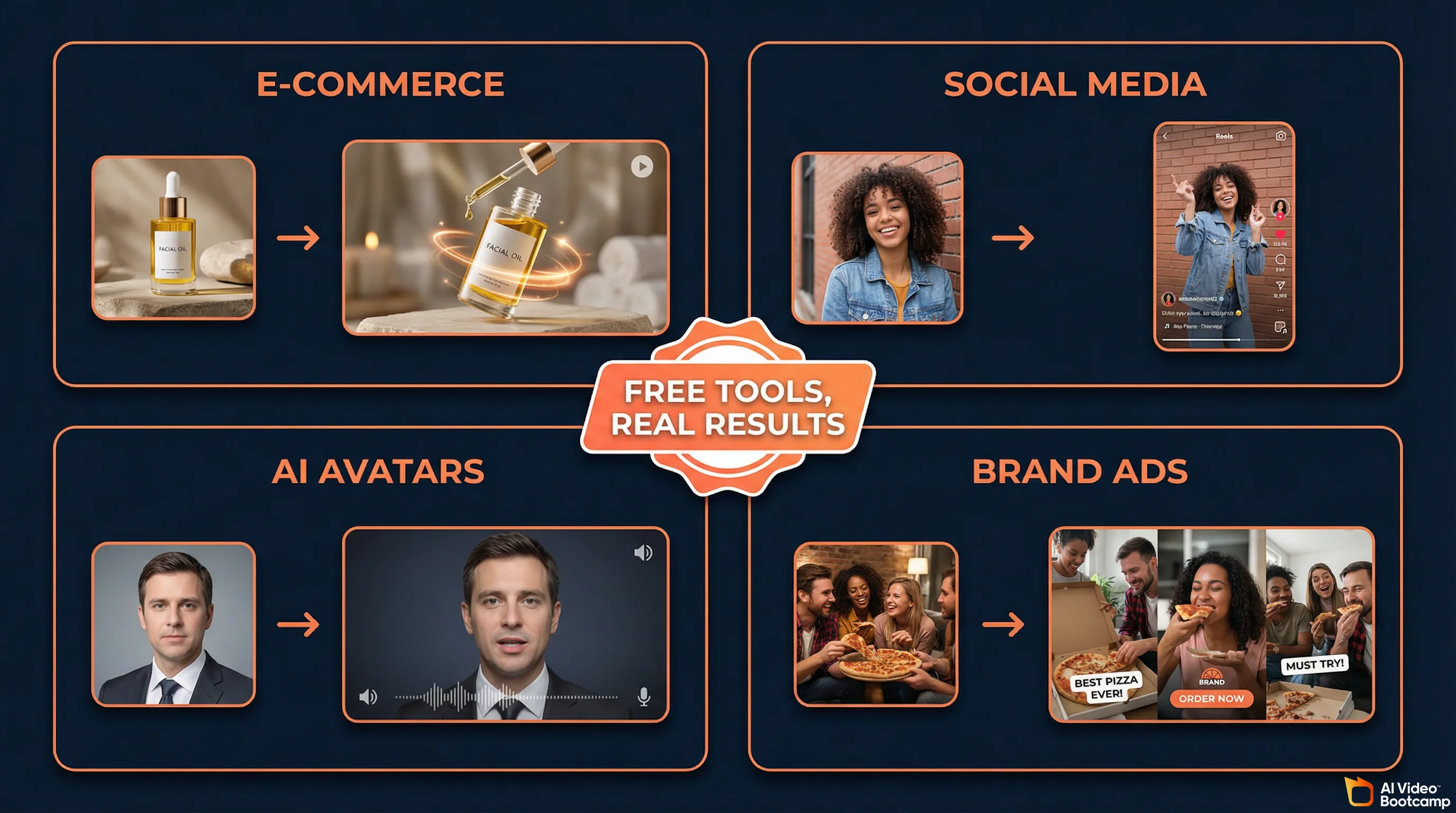
Free image-to-video tools are being used for e-commerce product videos, social media content at scale, AI avatar creation, and brand advertising.
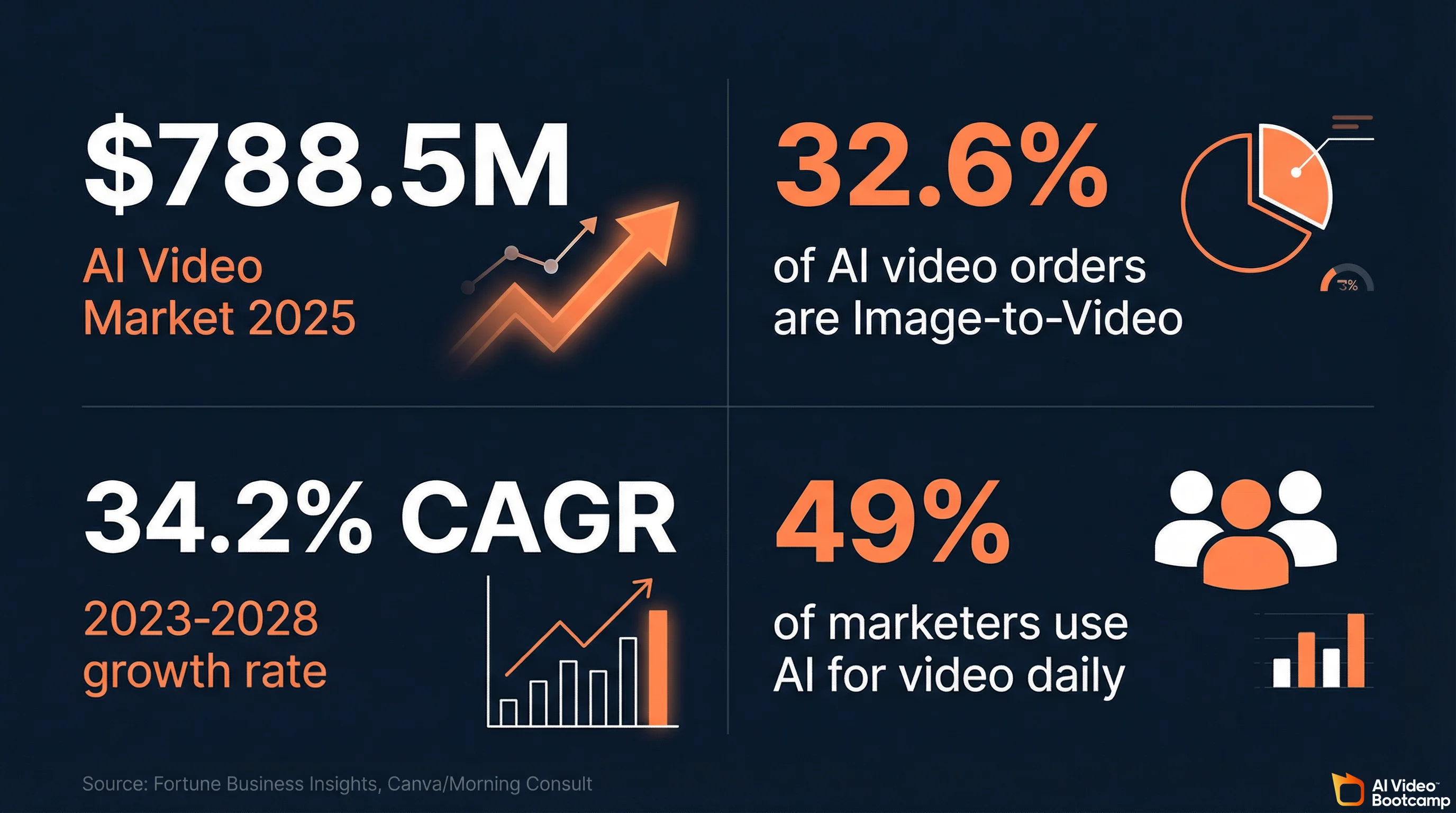 Brands transform product photography into video ads in minutes. Solo creators produce video content without cameras. Forty-nine percent of marketers now use AI for video daily.
This is not theoretical. These are the workflows generating real results right now.
E-commerce product videos. Brands transform static product photography into scroll-stopping video ads in minutes instead of weeks. Beauty brands use multi-shot sequences for makeup and fragrance content. Fashion D2C brands produce lookbook content and fit videos at scale. Food and beverage brands create cravings-driven UGC on TikTok and Reels. With AI video ads, a single product image becomes a complete ad creative.
Social media content at scale. Platform algorithms brutally favor video over static images on TikTok, Instagram Reels, and YouTube Shorts. Any existing photo library (product shots, portraits, travel photos, lifestyle images) becomes a video content library. Solo creators produce video content without cameras, actors, or editing expertise. Forty-nine percent of marketers worldwide now use AI for image and video generation on a daily basis.
AI avatars and influencers. Using consistent character reference images, creators generate video content for synthetic digital personas. daVinci-MagiHuman enables talking-head content from a single portrait with native lip sync. This connects directly to building AI avatars and influencers, where character consistency across dozens of videos is the critical commercial skill.
Personal and archival content. Turning family photos, travel photographs, or historical images into video for memorial projects, social media throwbacks, or creative storytelling.
The Economics of Free vs. Paid in 2026
The AI video generator market hit $788.5 million in 2025 and is growing at 34.2% annually.
 Intense competition between Google, ByteDance, Kuaishou, and Alibaba keeps free tiers genuinely useful. These companies subsidize your usage to build market share, but professional workflows eventually hit free-tier limits.
The AI video generator market was valued at $788.5 million in 2025 and is growing at a 34.2% compound annual growth rate. The intense competition between Google, ByteDance, Kuaishou, Alibaba, and dozens of startups is what keeps free tiers genuinely useful. These companies are subsidizing your usage to build market share.
But free has limits. If you are producing content professionally, here is when the math tips toward paid:
You need more than six videos per day consistently. You cannot tolerate watermarks on client deliverables. You require 1080p or 4K output from every generation. You need guaranteed uptime without queue delays.
The AI Video Bootcamp curriculum teaches multiple tools rather than locking you into one, specifically because the free-tier landscape shifts constantly. What is generous today gets cut tomorrow (as Hailuo proved when it slashed its unlimited plan to three clips per day). The 9-phase curriculum covers these tools in Phase 03 (AI Videos), builds on them with audio in Phase 04, and adds character consistency in Phase 05. For a complete overview of the learning path, see our guide on how to learn AI video and image creation in 2026.
What We Recommend
Start with Google Veo 3.1 for quality and Kling AI 3.0 for learning. That combination covers the best output and the easiest interface at zero cost. Add Seedance 2.0 for motion-heavy work and CapCut for editing. If you own a GPU, run Wan 2.2 locally for unlimited generation.
If you are just starting out: use Google Veo 3.1 via AI Studio for your best clips and Kling AI 3.0 for quick iterations and learning. That combination covers quality (Veo) and accessibility (Kling) at zero cost.
If you are producing content regularly: add Seedance 2.0 for motion-heavy work and learn to use CapCut for editing. That gives you three generation tools plus a free editing pipeline.
If you are technical and own a GPU: run Wan 2.2 locally. Unlimited generation with no watermark, no credit limits, and full commercial rights. The marginal cost per video is your electricity bill.
If you are building a business around AI video: start with the free tools to learn the workflows, then invest in paid tiers where the free limitations hurt your output. And consider joining a structured learning community where 20,000+ creators are solving the exact same problems you are hitting.
The tools are free. The skill to use them well is what separates a blurry five-second test clip from a cinematic thirty-second product ad that a brand pays $500 for. That skill comes from practice, feedback, and structured learning, not from buying more credits.
*Sources: Google DeepMind Veo, Veo 3.1 Ingredients to Video, Kling AI, Seedance 2.0, Wan 2.2 GitHub, Wan 2.2 I2V on Hugging Face, daVinci-MagiHuman GitHub, VBench Benchmark, [Artificial Analysis Video Ar